If your digital life feels held together by sticky notes, browser autofill, and the same three password patterns, you are not alone. Most people arrive at password managers the hard way: a breached email, a locked banking app, or the quiet dread of “I think I used that password somewhere else.” This guide is for beginners who want stronger logins without turning security into a second job. The goal is simple. You remember one master password. The manager remembers the rest. Everything else is habit, setup order, and a recovery plan you can actually find when you need it.
All U Want treats password hygiene as part of everyday digital life, not as a niche hobby for technologists. You already back up photos, clean downloads, and try to keep your phone from yelling at you. Logins belong in that same family of calm systems. A password manager is not about paranoia. It is about removing reuse, reducing guessable patterns, and making strong unique passwords the default instead of the exception.
Why password reuse quietly breaks digital life
Reusing passwords feels efficient until one site leaks. Attackers do not need to break every account one by one. They try the leaked email and password combination across email, shopping, social, streaming, and work tools. That is credential stuffing, and it thrives on human convenience. Even “clever” variations like Summer2024!, Summer2025!, and Summer2026! are easy for automated tools to try. The mental model that “close enough is fine” is exactly what makes recovery painful later.
Weak passwords are a second problem. Short words, birthdays, pet names, and keyboard walks are still common because they are easy to type on phones. A manager removes the typing friction. You generate long random strings once, save them, and fill them when needed. You stop optimizing for memory and start optimizing for uniqueness.
There is also the soft cost of password chaos: time spent resetting accounts, anxiety before travel, and the awkwardness of asking a partner which Netflix password is current. A manager becomes a shared source of truth for households and a private vault for individuals. That alone is worth the setup afternoon.
1. Choose a reputable manager that fits how you live
Beginners often stall on brand comparison. You do not need the perfect manager. You need a reputable one with cross-device sync, a clear recovery story, and a workflow you will keep using. Look for encryption that protects the vault with your master password, apps for phone and computer, a browser extension that fills forms carefully, and a company or open project with a track record of security updates. Prefer tools that make export possible so you are not locked into a black box forever.
Decide early whether you want a free tier or a paid family plan. Free tiers can be enough for one person starting out. Paid plans often add sharing, more device slots, emergency access, and better support. If you share accounts with a partner or adult child, a family plan can reduce the temptation to text passwords back and forth. If you work across personal and freelance clients, keep personal vaults separate from any work-mandated tool your employer provides.
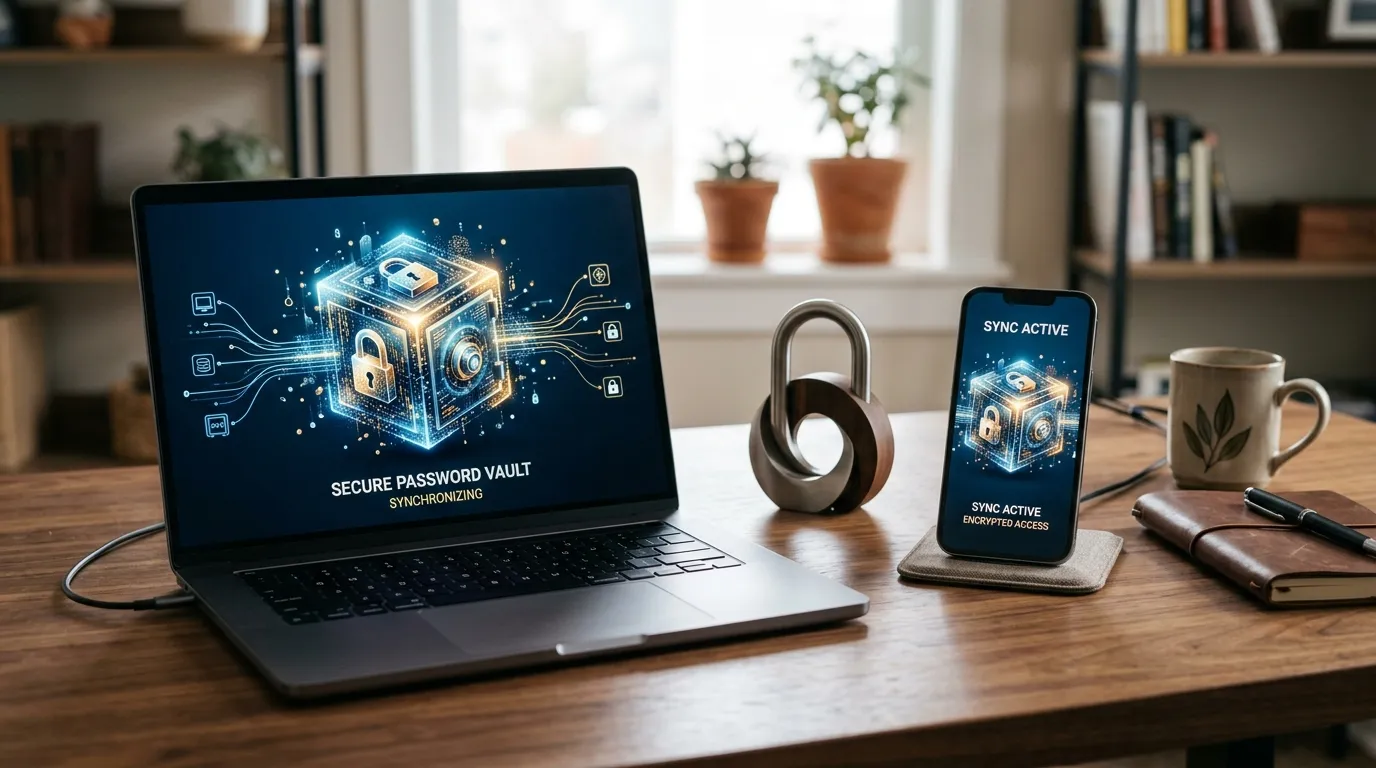
Cross-device sync matters because life is multi-device. You will need a login on your phone at a cafe, on a laptop at home, and sometimes on a tablet. Sync that is encrypted end to end is the usual modern expectation. Offline access is a nice bonus for travel days with spotty connectivity. Also check how the manager handles passkeys and two-factor codes if you want everything in one place later. You do not have to use every feature on day one.
Avoid installing random “password helper” apps from unknown publishers. Stick to well-known managers from official app stores and verified websites. Read the recovery documentation before you commit. If the recovery story is vague, keep shopping. Your future self will thank you for choosing clarity over marketing slogans.
2. Create a strong master password and treat it like a house key
Your master password is the one secret that unlocks the vault. Make it long, memorable to you, and unique. A passphrase of several unrelated words is often easier to remember and harder to guess than a short complex string. Add deliberate spacing or punctuation if the manager allows it. Do not base it on public facts about you. Do not reuse it anywhere else. That last rule is non-negotiable. The master password must never appear in email, shopping, social, or work logins.
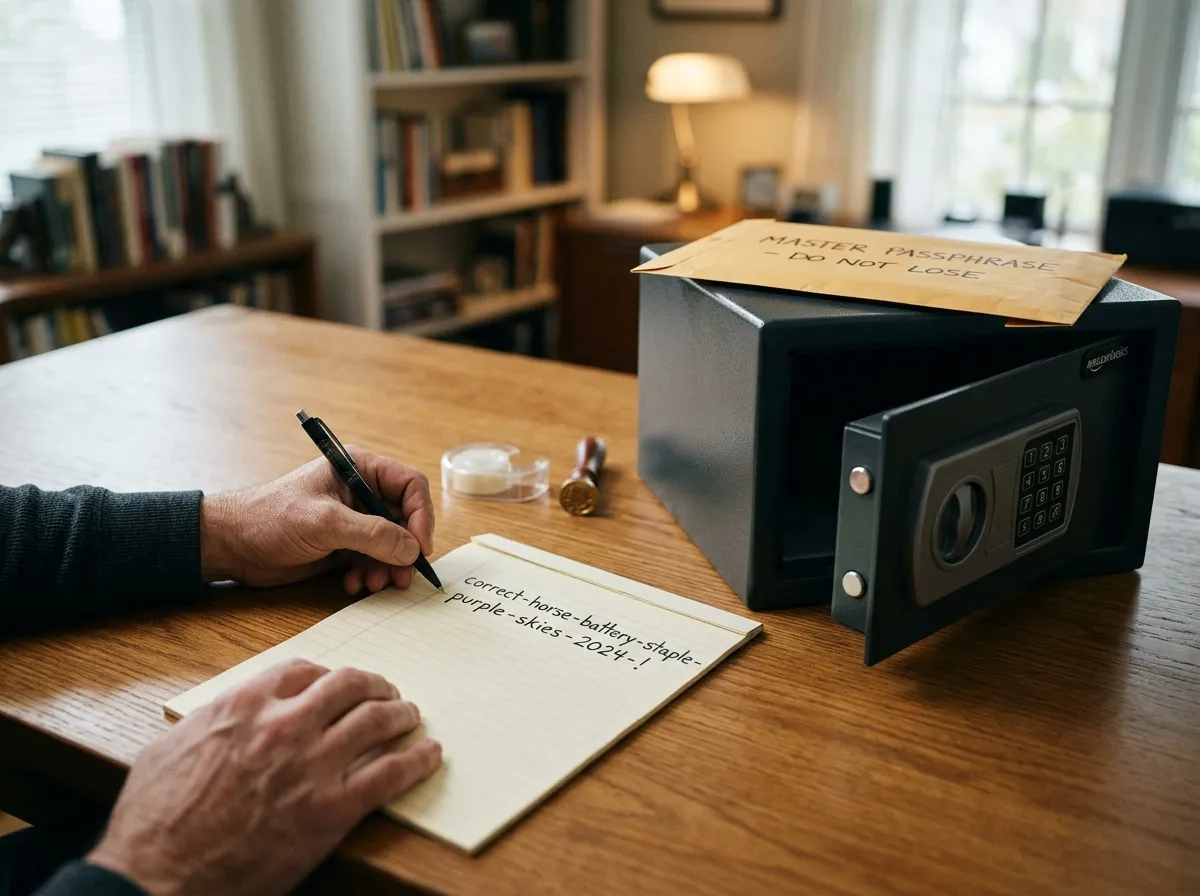
During setup, write the master password once on paper and store that paper somewhere safe and private, such as a locked drawer or a sealed envelope with other important documents. Some people also store a sealed copy with a trusted person for emergency access. Digital notes that sync to the cloud are a weak place for the master secret. If you must keep a digital emergency note, encrypt it separately and keep it offline. Better yet, use the manager’s official emergency access or recovery kit features if they exist.
Practice unlocking the vault a few times on day one so muscle memory forms. Then set a calendar reminder for thirty days later to confirm you still remember the passphrase without looking. If you forget early, that is better than discovering the problem during a trip. Update the paper copy only when you intentionally change the master password, and destroy the old copy.
Consider enabling biometric unlock on your phone after the vault is set up. Face or fingerprint unlock is convenience layered on top of the master password, not a replacement for it. You still need the master password when biometrics fail, when you get a new device, or when you reinstall the app. Know where that knowledge lives.
3. Import existing logins, then replace the weak ones first
Most managers can import from browser password stores or a CSV export. Importing is a starting point, not the finish line. Browser stores often contain duplicates, outdated entries, and passwords you no longer use. After import, clean the vault in short sessions. Merge duplicates. Delete dead accounts. Fix site names so search works. Then begin replacing weak and reused passwords with generated ones.
Start with the accounts that unlock everything else: primary email, Apple or Google account, banking, password reset destinations, and work or school identity providers. If someone controls your email, they can often reset almost anything else. Treat email as the crown jewel. Next, secure financial accounts, government portals, cloud storage, and any site that stores payment methods. After that, move through shopping, social, utilities, and entertainment.
When you change a password on a site, save the new one in the manager immediately and test a logout and login cycle. Do not leave the old password in the vault as the active entry. If a site rejects very long passwords or certain characters, adjust the generator rules for that site only. Keep a short note in the vault entry if a site has quirky requirements. Over a week or two, you can migrate the important accounts without living inside security settings all day.
Browser autofill and the manager can conflict. Decide which system is primary. Many beginners turn off browser saving after the manager is working so they are not maintaining two incomplete lists. Keep the browser extension permissions tight and confirm fill prompts before accepting them on sensitive pages. Phishing sites sometimes try to look familiar. A careful pause before fill is part of the habit.
4. Enable two-factor authentication where it is offered
A password manager raises the floor. Two-factor authentication raises it again. Prefer app-based codes or hardware keys over SMS when you have a choice, because SIM swap attacks exist. Many managers can store one-time code seeds so the code appears next to the password. That is convenient. It also concentrates risk in one vault, which is why the master password and device security matter so much. If you prefer separation, keep codes in a dedicated authenticator app and back up those seeds according to that app’s guidance.
Enable two-factor on email and banking first, then on cloud storage and major shopping accounts. Save backup codes in the vault or in a printed recovery packet. Backup codes are easy to ignore until you lose a phone. Do not photograph them into an unsecured camera roll. Store them with the same care as the master password note.
Passkeys are arriving on more sites. When a site offers a passkey and your devices support it, it can reduce phishing risk and password typing. You can adopt passkeys gradually while still keeping generated passwords for sites that have not caught up. The beginner mindset stays the same: unique credentials, fewer shared secrets, and a recovery path you understand.
Build a recovery plan you could follow under stress
Security systems fail at the edges: new phones, broken laptops, forgotten passphrases, and family emergencies. Write a one-page recovery note that explains which manager you use, where the account email lives, how emergency access works, and where the sealed master password copy is stored. Keep product names and steps, not the master password itself, in any digital household wiki. Pair this with a broader backup habit so a lost phone does not also mean a lost vault backup. For the wider copy strategy across photos, documents, and credentials, use our guide on how to back up your digital life.
Test recovery on a spare device or after a simulated reinstall when you have time. Confirm you can install the app, unlock with the master password, and sync. If your plan depends on email access, make sure that email itself is recoverable. Circular dependencies are a classic beginner trap: vault unlocks email, email resets vault, neither works alone. Break the circle with offline recovery materials.
Household sharing deserves explicit rules. Shared streaming logins can live in a shared vault folder. Personal banking should not. Emergency access features that grant a trusted contact delayed access can be kinder than leaving passwords in a drawer with no context. Talk through the plan once so nobody is guessing during a crisis.
Daily habits that keep the vault trustworthy
Use the generator for every new account. Resist the urge to invent “just this once” passwords. Update entries when you change jobs, cancel subscriptions, or close shops you no longer trust. Review security dashboards inside the manager monthly if they flag reused or weak passwords. Those reports are useful only if you act on a few items at a time.
Watch for notification fatigue around login alerts. Genuine “new device” emails from critical services deserve attention. Marketing noise does not. Pair password discipline with a quieter phone so real security alerts are not buried. When you clean digital clutter, include abandoned accounts on the list: if you do not use a service, close it or at least stop leaving an old weak password active. Our digital declutter checklist is a practical companion for that cleanup pass.
Be careful on shared and public computers. Prefer unlocking the vault on your own phone and using a one-time flow rather than installing extensions on machines you do not control. Lock your devices with a PIN or biometrics. A vault on an unlocked phone is only as strong as the lock screen. Full-disk encryption and OS updates are part of the same story even though they sit outside the manager app.
Common beginner mistakes and how to avoid them
The first mistake is delaying setup until after “one more breach scare.” Start with email and banking this week. The second is choosing a master password you reuse elsewhere. The third is never testing restore. The fourth is storing the only copy of backup codes inside an email folder you might lose. The fifth is sharing the master password in chat apps. Use official sharing features for site passwords instead.
Another subtle mistake is vault clutter that mirrors the old chaos. If every abandoned forum login sits next to your bank entry, search gets noisy and trust drops. Archive or delete ruthlessly. Name entries clearly with the real site name and account email. Add tags like “finance,” “travel,” or “family share” if your manager supports them. Clarity is a security feature because it reduces wrong fills and wrong resets.
People also overcomplicate generators. Extremely long passwords with every symbol class are fine when sites accept them, but reliability matters more than theatrics. Follow site rules, save what works, and move on. Perfectionism is how beginners quit.
A one-week starter plan
Day one: install the manager on phone and computer, create the account, set the master password, and store the paper copy. Day two: install the browser extension and import existing passwords. Day three: change email and banking passwords to generated ones and turn on two-factor. Day four: secure cloud storage and major shopping accounts. Day five: clean duplicates and delete junk entries. Day six: set up emergency access or finalize the household recovery note. Day seven: test unlock on a second device and celebrate a quieter mind.
After the first week, migrate a few accounts whenever you log in naturally. Opportunistic upgrades beat ambitious marathons. Within a month, most of your daily sites should be unique and stored. Within a quarter, the long tail of rarely used logins can be cleaned as you encounter them.
How password managers fit a calmer digital life
All U Want’s digital life posts share one theme: small systems that reduce friction and risk. A password manager sits beside backups, file structure, photo cleanup, and notification control. It is infrastructure. You notice it most when it is missing. Once it is working, logins become boring in the best way. You stop inventing secrets. You stop reusing stories about your life as credentials. You get time back for the parts of digital life that deserve attention: creative work, family photos, and actual rest.
If you already feel overwhelmed by apps and accounts, do not try to secure everything in one evening. Secure the keys that open the house. Then walk room by room. That pacing is how beginners finish instead of restarting every New Year with the same guilt.
Quick tip
Never reuse the master password anywhere else. If a site ever asks for it, you are in the wrong place.
FAQ
How long does this take? Most people can complete core setup in under an hour, then improve account by account over a week. Full migration of every old login can take longer and that is normal.
Do I need special tools? No. A reputable password manager plus careful habits beats a complicated custom system you abandon. Paper recovery notes still matter.
What if I forget the master password? Use your written recovery copy or the manager’s official recovery process. Prevent this by rehearsing unlock and storing the sealed copy where you can find it.
Is a password manager safe enough for banking? Reputable managers are widely recommended precisely for high-value accounts, especially when paired with two-factor authentication and a locked device.
Should families share one vault? Share specific credentials through family plans or shared folders. Keep personal finance and private email out of casual shared spaces.
Can I keep using my browser’s built-in passwords? You can start there, but a dedicated manager usually syncs more flexibly across ecosystems and offers stronger workflows for generation, sharing, and audits. Pick one primary system so you are not split.
What about writing passwords in a notebook? A notebook can work for a few critical offline codes if it is stored safely, but it scales poorly and is hard to update. Use a manager for daily logins and keep offline paper for recovery secrets only.
Related: How to Back Up Your Digital Life · Digital Declutter Checklist