Digital clutter rarely arrives as one dramatic mess. It builds in quiet layers: an app you downloaded for a trip and never opened again, a desktop full of screenshots, a Downloads folder that behaves like a landfill, unread newsletters that pile up because deleting them feels like admitting defeat. You open your phone to check one thing and feel tired before you start. That fatigue is clutter talking.
A digital declutter checklist for beginners is not a personality makeover. It is a sequence of small decisions that reduce friction. You do not need a perfect system on day one. You need a repeatable path that turns chaos into zones you can maintain in minutes, not weekends.
This guide walks through apps, email, files, photos, browser tabs, cloud dumps, and a monthly maintenance habit. Use it as a map. Complete one zone thoroughly before jumping to the next. Speed matters less than finishing a zone so your brain trusts that progress is real.
Why digital clutter drains you
Physical clutter has edges you can see. Digital clutter hides behind icons, badges, and folders that look neat until you open them. The cost shows up as:
- Decision fatigue every time you hunt for a file
- Guilt from unread counts that never clear
- Slow devices full of junk you never meant to keep
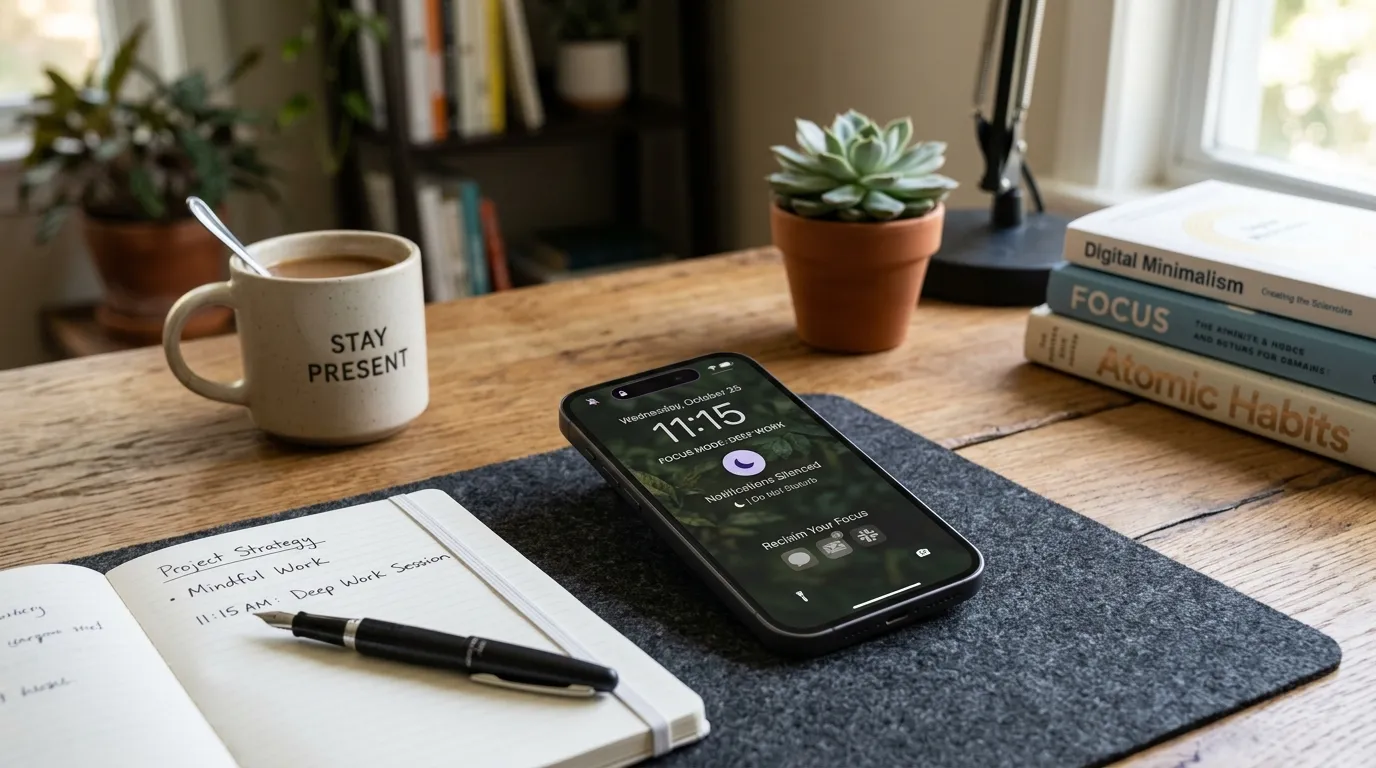
- Anxiety from notifications and red dots
- Wasted money on subscriptions tied to forgotten apps
Decluttering is not about becoming a minimalist influencer. It is about making your tools serve the next hour of your life. When search works, when the home screen is calm, and when your inbox is not a guilt machine, focus becomes easier without willpower theatrics.
The beginner rules that keep you moving
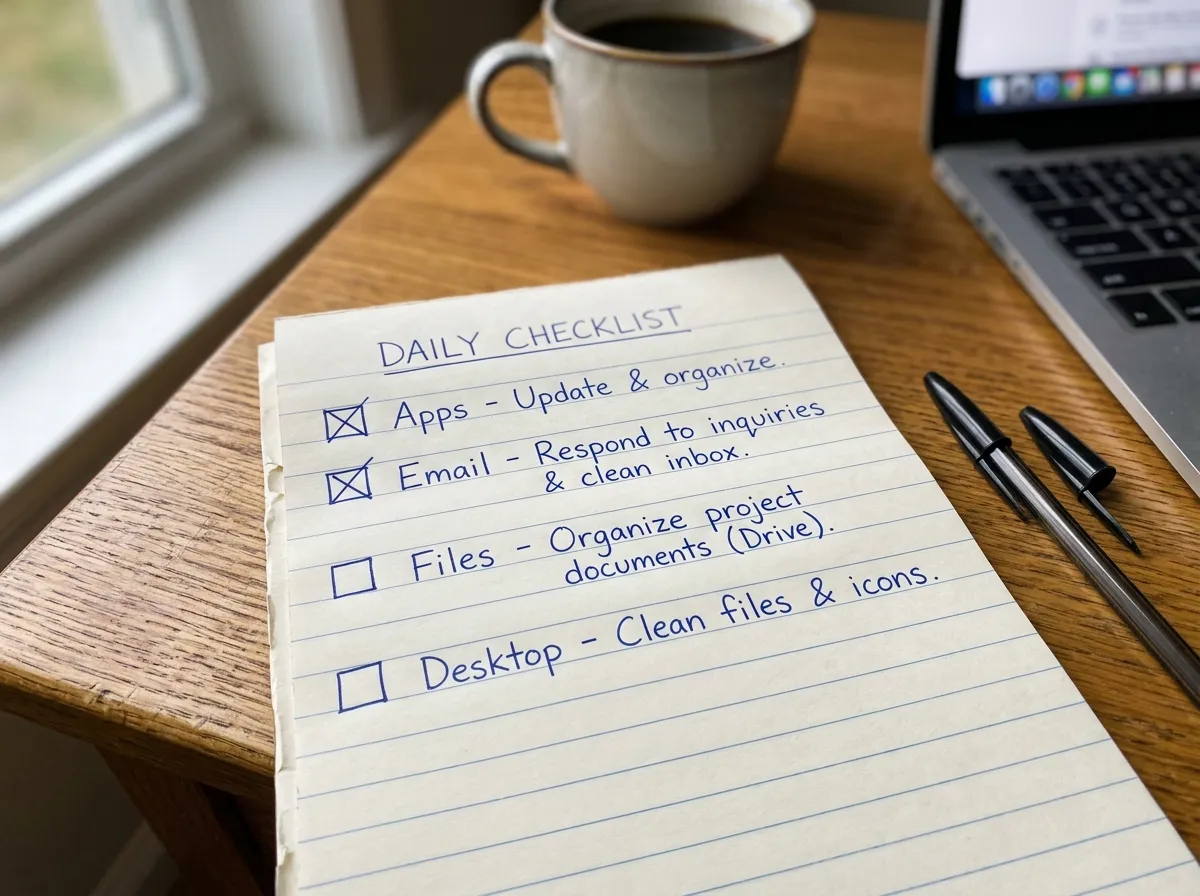
Before you touch a single folder, set rules that prevent spiral cleaning:
- One zone per session. Phone apps today. Downloads tomorrow. Mixing zones creates unfinished messes.
- Default to delete or archive. If you have not opened it in 90 days and it is not a legal or tax record, it is a candidate for removal.
- Keep a holding tray. A single folder named Review Later is fine for a week. Do not invent fifteen maybes.
- Capture before you purge. If something feels emotionally sticky (family photos, old projects), back it up first, then sort.
- Timebox. Twenty-five minutes is enough for a useful pass. Stop on the timer even if unfinished.
These rules matter more than fancy tools. Beginners fail when they try to design a perfect taxonomy while sitting on years of debris. Clear volume first. Structure second.
Zone 1: Phone apps
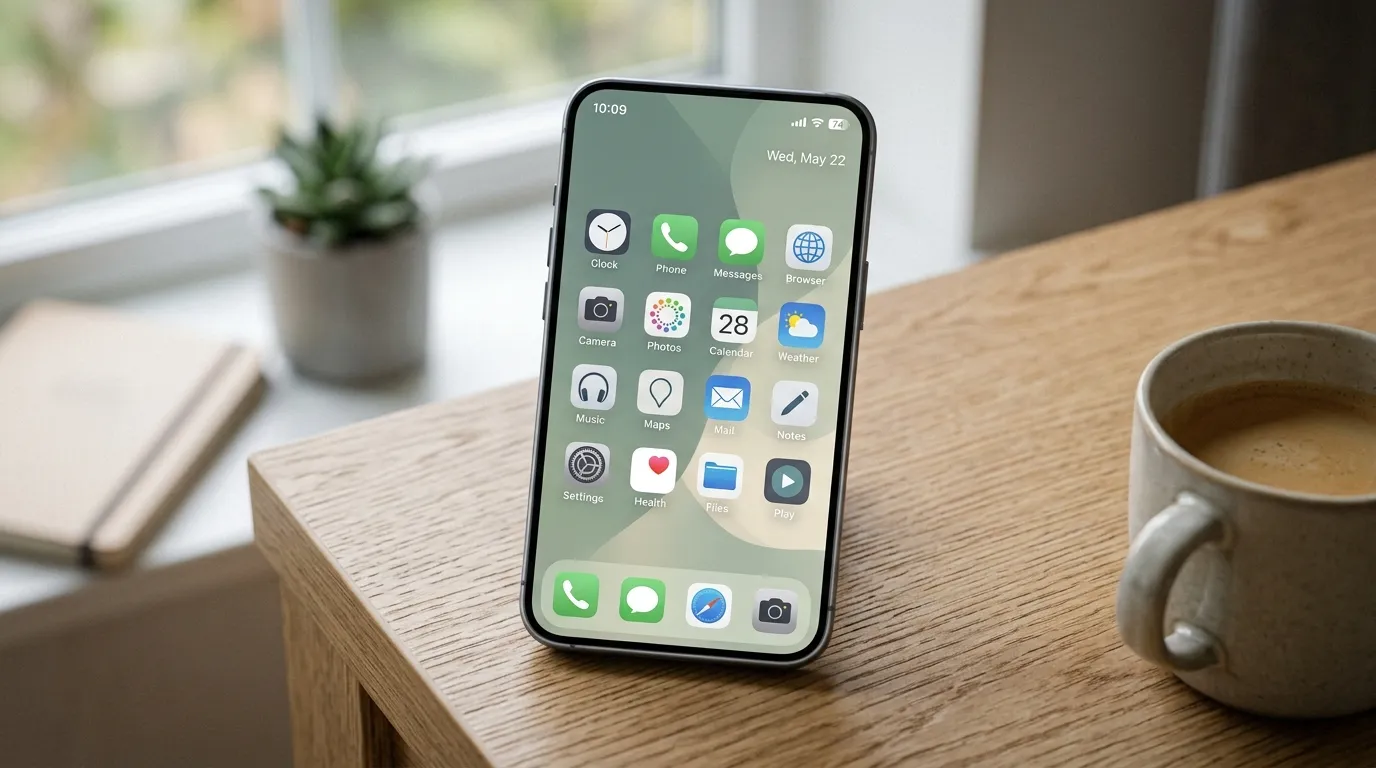
Start where friction is highest. Your phone is the remote control for attention. Open the app library or app drawer and sort by last used if your phone allows it.
Delete with a clear bar
Remove apps you have not opened in 30 days unless they are seasonal tools you know you need (tax filing, travel, banking). Seasonal apps can live off the home screen in a folder named Seasonal rather than clogging page one.
For each app, ask three questions:
- Did I open this last month?
- Does it do a job another app already does?
- Would I reinstall it tomorrow if I needed it?
If the answers are no, yes, and yes, delete it. Reinstalling is cheap. Mental noise is expensive.
Separate keepers from clutter magnets
Keepers are tools you use weekly: messaging, maps, calendar, banking, camera, a note app, maybe one music service. Clutter magnets are games you open when bored, shopping apps with constant sales, and duplicate utilities (three PDF readers, two notes apps).
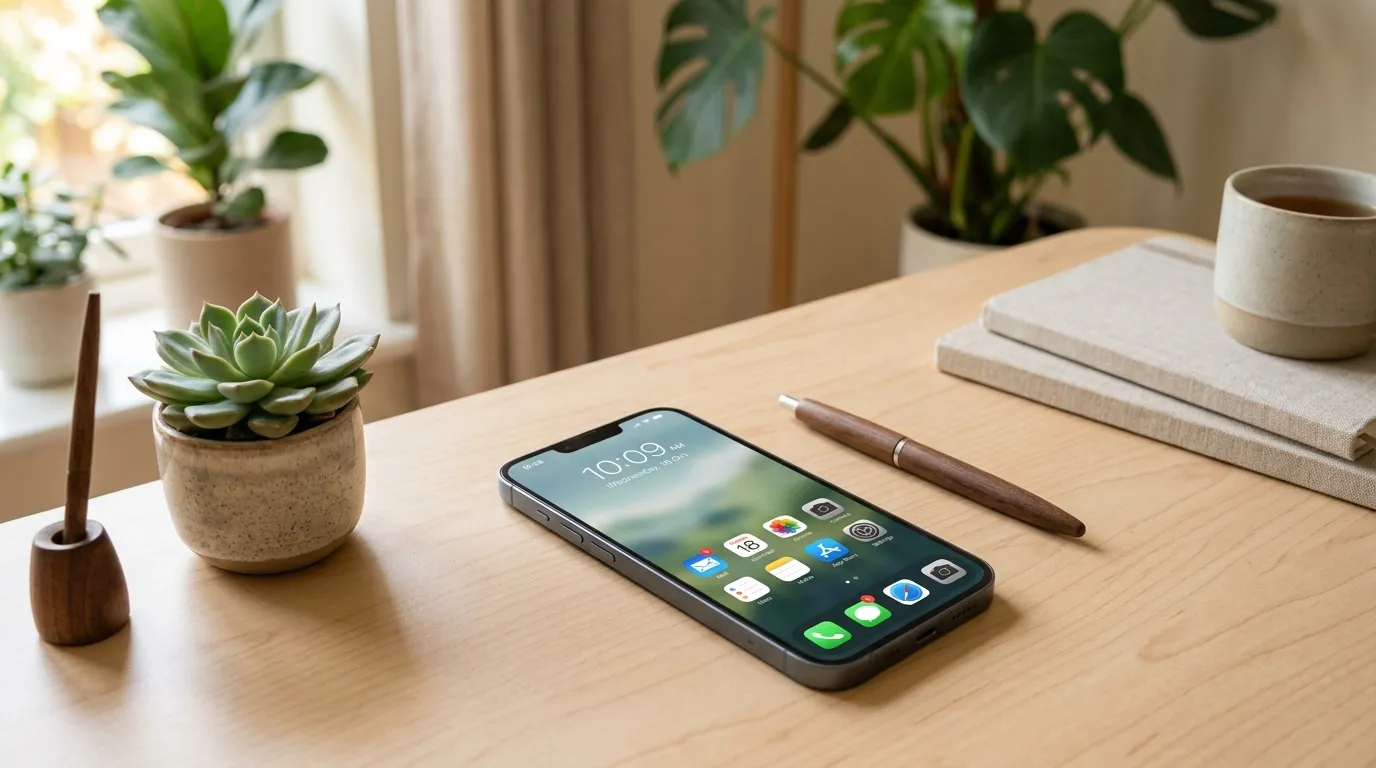
After deletion, clean the home screen. Keep daily apps on page one. Put everything else into job-based folders. For a calmer layout, follow the companion guide on how to clean your phone home screen so icons stop competing for taps.
Zone 2: Email subscriptions and noise
Email clutter is often subscription clutter. You do not need inbox zero on day one of a declutter. You need fewer arrivals.
Spend one session sorting by sender. Unsubscribe from anything you skim and ignore. Delete or archive the backlog in batches of fifty. If a sender is useful but not urgent, filter it to a Newsletters folder and read it twice a week on purpose.
Treat unsubscribe as hygiene, not a weekend project. Ten unsubscribes per day for a week beats a heroic six-hour purge you never repeat. Pair this zone with a realistic email processing habit later; declutter first by reducing volume.
Zone 3: Desktop and Downloads
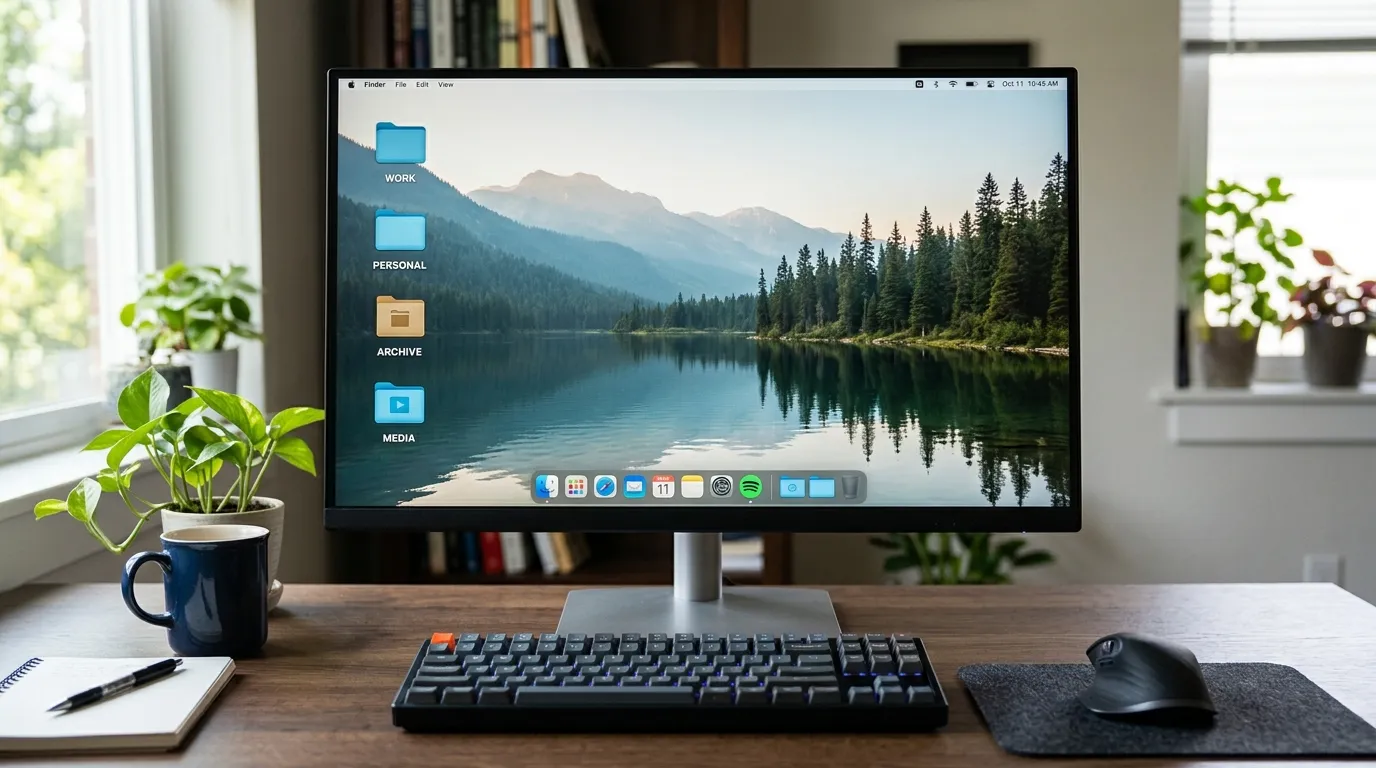
Desktop and Downloads are temporary zones that forget they are temporary. Open both and process every item with one of four actions: file, archive, delete, or Review Later.
A simple filing map for beginners
You do not need a complex tree. Start with broad buckets:
- Work (or School)
- Personal
- Finance
- Media (photos, video exports)
- Archive (finished projects you rarely open)
Inside each bucket, use year folders or project folders, not both at once if you are starting from chaos. Consistency beats cleverness. When you are ready for a deeper structure, use the guide on how to organize files and folders so naming and nesting stay simple.
What to delete without guilt
- Duplicate installers and old ZIP files
- Screenshots of expired tickets or one-time codes
- Exports you already uploaded elsewhere
- Random PDFs you can re-download from a portal
- Half-finished drafts superseded by a newer version
If fear of deleting holds you back, create an Archive-YYYY-MM folder, move uncertain files there, and set a calendar reminder for 90 days later. If you never opened the archive, delete it then.
Zone 4: Cloud dumps and shared drives
Cloud storage feels infinite, so it becomes a second attic. Open your main cloud drive and look for:
- Folders named New Folder, Untitled, or Misc
- Duplicate backups of phone photos
- Shared folders you no longer need access to
- Old resume versions and proposal drafts
Remove yourself from shared folders you do not use. Delete obvious duplicates. Move active work to a clear Active Projects folder and park finished work in Archive. Do not try to rename every historical file in one night. Clear the path you walk daily first.
Zone 5: Browser bookmarks and tabs
Browser clutter is postponed decisions. Open tabs often mean “I might read this.” Bookmarks often mean “I might need this someday.”
Close tabs after saving anything truly useful into a notes app or a Reading List with a date. For bookmarks, keep a short toolbar of weekly sites and a single folder called Reference. Delete the rest. If a site is important, you will find it again through search or history.
Extensions deserve the same treatment as apps. Remove anything you do not remember installing. Each extension can slow browsing and add tracking surface you never intended.
Zone 6: Photos without emotional overload
Photo declutter stalls because every image feels like a memory. Separate the job into mechanical passes:
- Delete blanks, screenshots of receipts already paid, and accidental pocket photos
- Collapse burst sequences to one or two keepers
- Remove near-duplicates from the same event
- Leave emotional sorting for a later weekend with a friend or partner
Back up first if you have no backup. Decluttering without a safety net turns every delete into a panic. After mechanical cleanup, your library feels lighter even if thousands of real memories remain.
Zone 7: Accounts, passwords, and subscriptions
Digital clutter includes identity clutter: old accounts, reused passwords, and subscriptions tied to apps you deleted. During declutter week, make a short list of services you still pay for. Cancel what you do not use. Update passwords for banking, email, and work tools if they are weak or reused.
You do not need a full security overhaul in the same session as Downloads cleanup. Note the accounts that matter and schedule a separate hour for password hygiene. The point of the checklist is to surface leaks of attention and money, not to invent a second full-time job.
A seven-day beginner declutter plan
Use this plan if the full map feels large. Each day is one zone, about 25 to 40 minutes.
- Day 1: Delete unused phone apps. Clear home screen badges you can disable.
- Day 2: Unsubscribe from 15 email senders. Delete or archive one chunk of old mail.
- Day 3: Empty Desktop. File or trash every icon.
- Day 4: Empty Downloads with the four-action rule.
- Day 5: Browser tabs, bookmarks, and extensions.
- Day 6: Cloud Misc folders and shared drive exits.
- Day 7: Photo mechanical pass plus a 10-minute maintenance calendar note for next month.
If a day spills over, continue the same zone the next day. Do not skip ahead. Finished zones create momentum unfinished multitasking never does.
Monthly maintenance so clutter does not return
Decluttering once without maintenance is a temporary mood. Put a recurring 20-minute block on your calendar called Digital Reset. In that block:
- Delete any new unused apps
- Unsubscribe from three annoying senders
- Clear Desktop and Downloads
- Empty the Review Later folder or decide items finally
- Check for a new subscription you forgot
Ten focused minutes prevent the yearly archaeological dig. If your life includes heavy creative files or work projects, expand the reset to 30 minutes and add a quick archive of finished folders.
Common mistakes beginners make
- Building the perfect folder tree first. Structure without volume reduction is procrastination with labels.
- Keeping everything “just in case.” Most just-in-case files are never opened. Archive with a delete date.
- Decluttering while multitasking. Sorting with Slack open recreates the mess through distraction.
- Treating photos like apps. Photos need slower emotional rules. Do mechanical cleanup first.
- Buying new tools mid-purge. New apps add decisions. Use search, trash, and basic folders until the pile shrinks.
- Expecting one weekend to finish a decade. Measure progress by finished zones, not by empty storage meters.
How to know the declutter is working
You will feel it before you measure it. Signs of a healthy digital baseline:
- You can find last week’s document in under a minute
- Your phone home screen has breathing room
- Email arrivals feel fewer and more relevant
- Desktop stays empty most days
- You no longer dread opening Downloads
If those signals appear, keep the monthly reset and stop obsessing. A living system has a little clutter. The goal is recoverable order, not museum perfection.
Starter kit: what you need (and do not need)
You need a trash/delete function, a search bar, a calendar reminder, and honesty. Optional helpers: a notes app for the Review Later list, a basic cloud backup, and a password manager when you are ready. You do not need a complex life-os dashboard, color-coded nested folders twelve levels deep, or a new device.
All U Want favors defaults you will still use in three months. The checklist above is designed for that: clear zones, short sessions, and maintenance that fits a normal week.
Putting it together
Digital declutter for beginners is a sequence: reduce apps, cut email noise, clear temporary file zones, tidy cloud attics, simplify the browser, run a gentle photo pass, and schedule a monthly reset. Each finished zone lowers the background stress that makes every digital task feel heavier than it is.
Start today with one zone and a timer. When page one of your phone feels calmer, deepen the layout with a home screen clean. When files stop living on the desktop, grow a simple folder map. Related reading that pairs well with this checklist: Clean Your Phone Home Screen and How to Organize Files and Folders.
FAQ
How long does a first declutter take? Most beginners can finish a useful first pass of phone apps and temporary folders in one to three hours across several days. A full multi-year cleanup of photos and archives may take weeks of short sessions. Progress by zone is enough.
Do I need special declutter apps? No. Built-in delete, search, folders, and unsubscribe links handle nearly everything. Special tools can help later for duplicates, but they are optional.
What if I am afraid of deleting something important? Back up first, then use a dated Archive folder. Revisit in 90 days. Fear shrinks when there is a safety net and a review date.
Should I declutter my work computer the same way? Yes, with extra care for shared drives and retention policies. Ask what your workplace requires before deleting shared files. Personal Downloads and Desktop still follow the same rules.
How often should I repeat this? Run the full checklist once to reset, then a 20-minute monthly maintenance. Add a deeper seasonal pass if you generate lots of media or project files.
What is the best first step if I feel overwhelmed? Delete unused phone apps for 25 minutes. It is visible, reversible, and builds confidence for file and email zones next.
Related: Clean Your Phone Home Screen · How to Organize Files and Folders