
Backup is boring until the day you need it. A cracked phone, a failed hard drive, a stolen laptop, or a sync account that suddenly locks you out can erase years of photos, tax files, creative projects, and login access in a single afternoon. The good news is that protecting the essentials does not require a weekend of IT projects or expensive enterprise tools. One focused afternoon can cover photos, documents, and password recovery so a bad day does not become a permanent loss.
This guide is built for regular people who want a calm, repeatable backup plan. You will list what you cannot lose, apply simple 3-2-1 thinking, turn on automatic cloud protection where it matters, make a second local copy of the irreplaceable stuff, and finish with a restore test. Along the way you will also tighten how passwords and files are stored, because a backup of chaos is still chaos when you need something fast.
Think of backup as household infrastructure, like smoke detectors. You hope you never need it. You still check that it works.
Why one afternoon is enough to start
People delay backup because they imagine a perfect system: every file sorted, every device encrypted, every cloud folder mirrored, every old CD archived. That fantasy is why nothing happens. A useful first backup is incomplete on purpose. It protects the items that would hurt most to lose, then improves over the next week.
In one afternoon you can realistically:
- Write a short inventory of critical data
- Turn on phone photo backup and computer folder sync for key directories
- Export or sync a password vault safely
- Copy the highest-value folders to an external drive
- Confirm you can open at least one restored file from each place
- Leave a recovery note for yourself or someone you trust
That is not perfection. It is a working safety net. Perfection can wait until after the net exists.
Step 1: List what you cannot lose
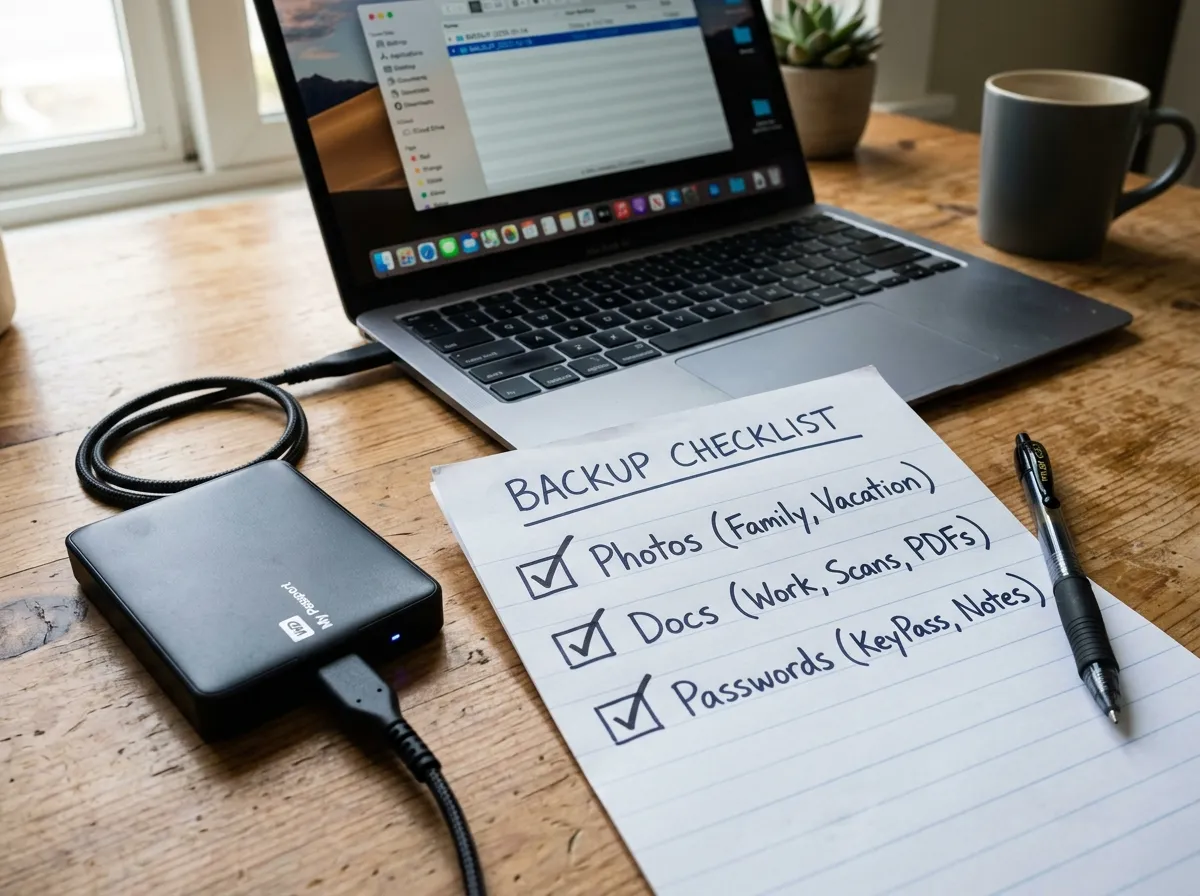
Open a blank note and title it “Cannot lose.” Spend ten minutes, not sixty. If you try to list every file on your computer, you will stall. Capture categories and the places they live.
The usual irreplaceables
- Photos and videos: phone camera roll, cloud photo libraries, old camera cards, shared family albums
- Identity and money docs: tax returns, insurance, deeds, wills, IDs, medical records, loan paperwork
- Creative and work output: portfolios, manuscripts, designs, client files, school work, research
- Password vault and recovery codes: manager database, printed recovery kit, authenticator backup
- Personal archives: journals, scanned letters, home videos, childhood media from relatives
Next to each category, write where it currently lives: phone only, laptop Downloads folder, USB drive in a drawer, email attachments, a cloud account you barely use. Surprises are normal. Many people discover their “backup” is actually one unpaid cloud plan and a hard drive that has not been plugged in for three years.
Separate “nice to keep” from “must keep”
Old software installers, random screenshots, and duplicate downloads can wait. Backup afternoons fail when every megabyte feels sacred. Mark must-keep items with a star. Everything else is optional for round two.
If your files are scattered, pause and skim how to organize files and folders. You do not need a perfect taxonomy before you back up, but a simple folder called Critical with subfolders for Taxes, IDs, Work, and Personal makes copying and restoring far less stressful.
Step 2: Use 3-2-1 thinking without becoming a technician
The classic rule is three copies of important data, on two different kinds of storage, with one copy offsite. Translate that into plain language:
- Three copies: the original plus two backups (for example: phone + cloud + external drive)
- Two media types: not only one cloud account and not only one USB stick
- One offsite: something that survives a house fire, flood, or theft of your bag
You do not need three copies of every meme screenshot. Apply 3-2-1 to the starred list. For most households that means:
- Photos: device + automatic cloud + occasional export to external drive
- Documents: working folder on computer + synced cloud folder + annual archive on external drive
- Passwords: vault synced across your devices + printed recovery sheet in a safe place
Offsite does not have to mean a fancy vault. A reputable cloud account already counts as offsite for many people. A second option is an encrypted drive stored at a trusted relative’s house or a small safe deposit box if you prefer physical distance for especially sensitive archives.
Step 3: Protect photos first
Photos are usually the emotional core of a digital life. Start there because the payoff is immediate and the risk of “I’ll do it later” is high.
Phone camera roll
On iPhone, turn on iCloud Photos or another trusted backup path you already pay for. On Android, enable Google Photos backup or your preferred equivalent. Confirm that backup is using Wi-Fi if you care about mobile data, and confirm that the account email is one you control long term.
Then do two quick checks:
- Open the cloud library on another device or the web and confirm recent photos appear
- Note how much storage you have left so tomorrow’s trip photos do not silently fail
Old photo piles
If you have SD cards, old phones, or a folder named “Pics final FINAL,” gather them into one staging folder on your computer for this afternoon. You do not need to declutter every duplicate today. Copy the whole staging folder to cloud sync and to an external drive. Declutter can be a later project once the copies exist.
A practical rule: never delete the only copy while “organizing.” Delete only after you have verified a second and third copy of the keepers.
Step 4: Back up documents and work folders
Create or confirm a small set of folders that matter: Taxes, Legal, Finance, Work Active, Work Archive, Personal Records. Move or copy the starred documents into that structure if they are currently floating in Downloads and Desktop.
Then choose one automatic method:
- Cloud sync for the Critical parent folder (OneDrive, Google Drive, Dropbox, iCloud Drive, or similar)
- Or whole-user backup software that runs on a schedule to an external drive
For a one-afternoon starter plan, folder sync is usually enough. Point the sync client at Critical, wait until the status shows complete, then unplug nothing until the first full upload finishes.
Also check email attachments you treat as a filing cabinet. Download the handful of PDFs you would panic about losing (passport scans, contracts, warranties) into Critical instead of relying on a searchable inbox forever.
Step 5: Treat passwords as backup-critical
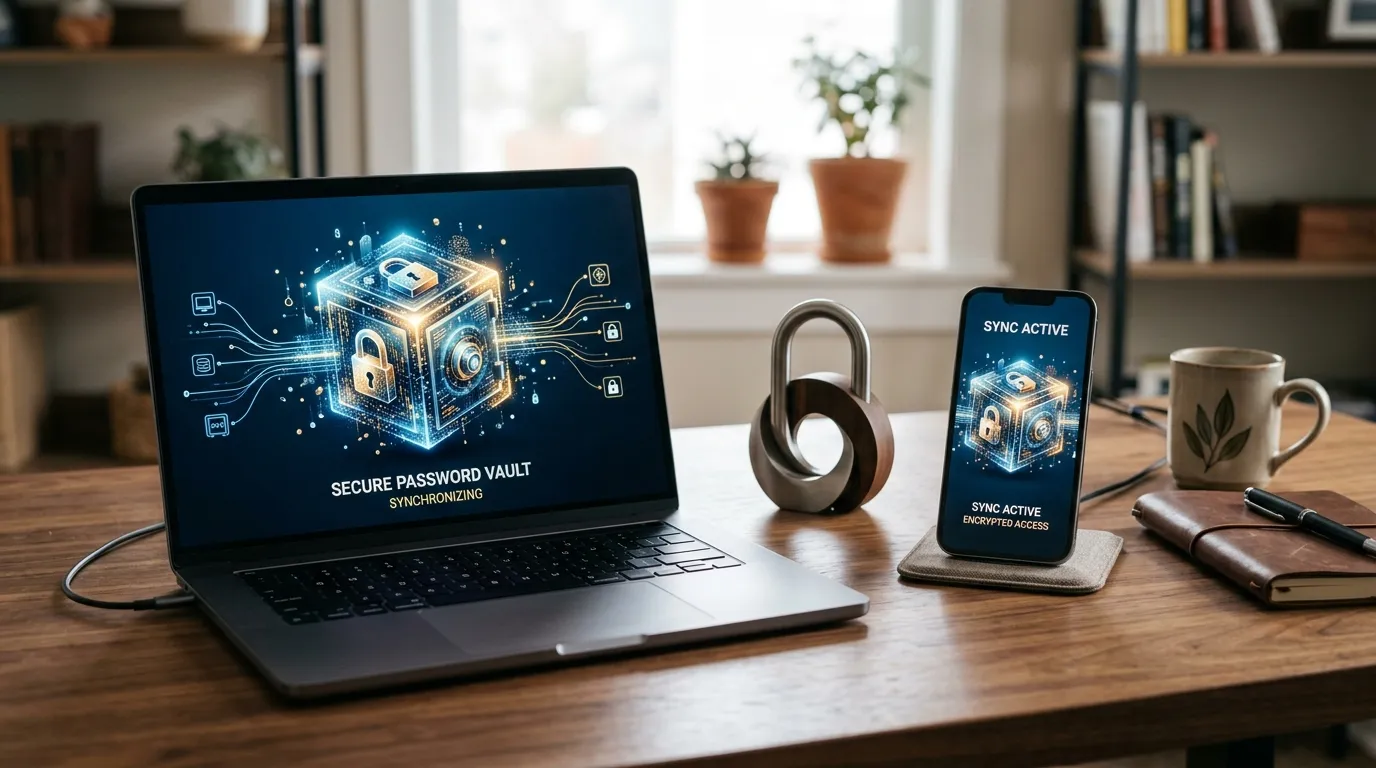
A perfect document backup still fails if you cannot log into the accounts that hold the rest of your life. If you do not yet use a password manager, this afternoon is a good moment to start with the basics from our password manager guide for beginners. Even a partial migrate of email, banking, and cloud accounts reduces the chance that a forgotten password blocks recovery.
If you already use a manager:
- Confirm sync works on phone and computer
- Export a recovery kit or emergency sheet according to the app’s official instructions
- Store that recovery material offline, not only as a screenshot in the same phone you might lose
- Write down where the recovery kit lives in your household recovery note
Two-factor authenticator apps deserve a backup plan too. Many allow encrypted export or cloud backup. If yours does not, save the one-time recovery codes for critical accounts in the password vault and on paper.
Step 6: Make a local second copy the same day
Cloud is excellent and still not enough alone. Accounts get locked. Subscriptions lapse. People lose access during identity verification loops. A local copy on an external drive covers those gaps.
Buy or dust off a drive large enough for Critical plus photos. Label it clearly: “Backup – do not reformat.” Connect it, copy the Critical folder and your photo staging folder, then safely eject. If the drive supports hardware encryption or you can create an encrypted container with software you already trust, use it for sensitive documents. At minimum, do not leave tax PDFs on an unlabeled drive in a shared desk drawer.
How often should you update the local copy? For a starter habit, pick one recurring cue: first Sunday of the month, or the same day you pay rent. Put a calendar reminder. The afternoon plan only needs the first full copy; the habit keeps it alive.
Step 7: Test a restore before you celebrate
A backup you never tested is a hope, not a plan. Spend fifteen minutes proving the copies work.
Pick three small tests:
- Download one recent photo from cloud to a different device
- Open one PDF from the synced Critical folder on the web or a second computer
- Copy one file from the external drive back to your desktop and open it
If any test fails, fix it now while the problem is still small. Common failures include wrong cloud account, sync paused, drive not fully written, or photos stuck on “backup waiting for Wi-Fi” while you were on cellular only.
Optional advanced test: temporarily rename a non-critical file on your computer, restore it from backup, and confirm the content matches. Then put things back the way you want them.
Step 8: Write a household recovery note
Open a short note titled “If devices fail.” Include:
- Which cloud accounts hold photos and documents
- Where the external drive is stored
- That a password manager exists and where the recovery kit is
- Any important email addresses used for account recovery
- Who else in the household should know this exists
Do not put master passwords in this note. Point to the recovery kit location instead. Print one copy for a household binder if that fits your life. Digital-only recovery notes fail when the only device that can open them is the one that died.
A realistic afternoon schedule
Use this timeline if you like structure:
- 0:00–0:20: Cannot-lose inventory and Critical folder setup
- 0:20–0:50: Phone photo backup on, verify recent uploads
- 0:50–1:30: Gather documents into Critical, start cloud sync
- 1:30–2:00: Password vault check and recovery kit
- 2:00–2:40: External drive copy while sync finishes
- 2:40–3:00: Restore tests and household recovery note
If sync is still uploading after three hours, leave the computer plugged in overnight. The afternoon’s job was to start protected copies, not to stare at a progress bar until midnight.
What to do with multiple devices
Households often have a mix of phones, tablets, work laptops, and an old desktop that still holds wedding photos. Prioritize in this order:
- Primary phone camera roll
- Primary personal computer documents
- Password vault
- Secondary phones used by family members for photos
- Archive machines that only hold old media
Work devices may already be backed up by an employer. Still export any personal files that lived there by accident into your personal Critical folder. Do not assume a company laptop image includes your personal photo dump forever.
Cloud storage choices without endless comparison shopping
Pick the ecosystem you already use if it is working. Switching platforms mid-afternoon creates risk. What matters more than brand loyalty:
- You can log in from another device today
- You know how to recover the account
- You have enough storage for photos plus Critical
- Two-factor authentication is enabled on the account
If storage is full, free space by removing obvious junk installs and duplicate downloads, or upgrade one plan. Do not delete unique photos to “make room” until those photos exist elsewhere.
Common mistakes that quietly ruin backups
- One copy only: cloud alone, or drive alone, feels safe until that single path fails
- Never testing restore: corrupted archives and empty sync folders hide until crisis day
- Backing up the wrong account: personal photos uploading to a forgotten school or old work login
- Encrypting without a recovery path: a locked archive with a lost passphrase is digital landfill
- Leaving the only backup in the same backpack as the laptop: theft takes both
- Assuming “Files on this device” means cloud has them: check the actual online library
- Skipping passwords: restored files you cannot unlock help less than you think
- Decluttering before copying: people delete the wrong folder while “tidying”
Avoid drama. Prefer boring verification.
Security basics that belong in the same afternoon
Backup creates more copies of sensitive data, so tighten access while you work:
- Enable device passcodes and disk encryption if not already on
- Turn on two-factor for email and cloud accounts
- Update the operating system before trusting a long upload overnight
- Avoid free random “backup optimizer” tools from unknown sites
- Keep the external drive offline when not in use
If you share a computer, use separate user accounts so one person’s browsing habits are less likely to endanger everyone’s tax folder.
A seven-day follow-through plan
Day 1 is the afternoon above. The next week makes it durable.
- Day 2: Confirm overnight sync finished; fix any failed photo uploads
- Day 3: Move remaining starred documents into Critical
- Day 4: Add one more device’s photos if needed
- Day 5: Review password manager coverage for email and finance logins
- Day 6: Re-copy Critical to the external drive if anything major changed
- Day 7: Calendar the monthly local backup reminder and re-read the recovery note
After week one, maintenance is light: new photos flow automatically, documents land in Critical by habit, and the monthly drive copy takes fifteen minutes.
Special cases worth a short mention
Creators and freelancers: version large project folders deliberately. Cloud sync of huge video libraries can be slow and expensive. Keep working files local, publish finished deliverables to cloud, and archive completed projects to labeled drives with a written index.
Families: agree who owns the “household archive” role. Shared albums are great for viewing and terrible as the only backup if nobody knows which account pays for storage.
Students: thesis folders and application PDFs belong in Critical immediately. Do not keep the only copy on a lab computer.
People leaving a job: before returning a laptop, copy personal files out, confirm cloud ownership, and rotate passwords for accounts you accessed on that machine.
What success looks like
By the end of the afternoon you should be able to say:
- I know which data would hurt most to lose
- Photos are uploading automatically
- Critical documents exist in cloud sync
- A local drive holds a second copy
- I tested opening files from backup locations
- Someone could find the recovery note if I were unavailable
That is a real digital-life backup. You can refine folder names, buy a second drive, or add whole-disk imaging later. None of those upgrades replace the first working net.
FAQ
How long does a first backup afternoon take? Most people can cover the essentials in two to three hours, then let large photo libraries finish uploading in the background. Refinements fit into a week of short follow-ups.
Do I need special backup software? Not to start. Built-in phone backup, a mainstream cloud sync folder, an external drive, and a password manager recovery kit outperform complicated setups you abandon. Add dedicated backup apps later if you want scheduled full-disk images.
Is cloud backup safe enough by itself? Cloud is an excellent offsite copy, especially with two-factor authentication. Pair it with a local copy of Critical files so account lockouts or billing issues cannot strand you.
What if I cannot afford more storage right now? Prioritize. Back up identity documents, recent years of taxes, and the photo albums you care about most. Free space by deleting true junk, not unique memories. Upgrade storage when you can; partial protection still beats none.
How often should I test restore? After the first setup, re-test whenever you change cloud accounts, buy a new computer, or replace a drive. A five-minute check each quarter is enough for most households.
Should I back up social media? Optional. Download an archive if the account holds writing or photos you do not store elsewhere. Do not let social exports delay protection of your camera roll and documents.
What about encrypted notes and health apps? Check each app’s export path. If an app has no export, screenshot or PDF the essentials into Critical, or accept that those records live only inside that vendor’s world.
Quick tip
Write recovery steps in a note your household can find, and store the password recovery kit somewhere that is not only inside the devices you are protecting. Backup is a system of copies plus a way back in.
Related: Password Manager Guide for Beginners · How to Organize Files and Folders