File chaos wastes time in small invisible slices. You download a PDF, save a draft to the desktop, screenshot a confirmation, and promise to sort it later. Later becomes a second desktop, a Downloads folder with four-digit file counts, and a search box you treat like a life raft. Organizing files and folders on your computer is not about building a museum. It is about making retrieval boringly fast so your attention can stay on the work itself.
All U Want approaches computer organization as a digital life skill for beginners and busy people alike. You do not need nested taxonomies twelve levels deep. You need a shallow tree, naming rules that match how you search, a weekly Downloads ritual, and an archive habit that keeps active folders light. This guide gives you a practical structure you can install in an afternoon and maintain in minutes.
Why messy folders feel heavier than they look
Cluttered storage creates decision debt. Every new file asks where it belongs, and when the answer is unclear, the desktop wins. Search can find many things, but search fails when files are named Scan001.pdf or when three versions of a proposal sit in different places with no date. You also pay a cognitive tax each time you open Finder or File Explorer and see visual noise. That noise trains you to ignore the filesystem entirely, which makes the mess worse.
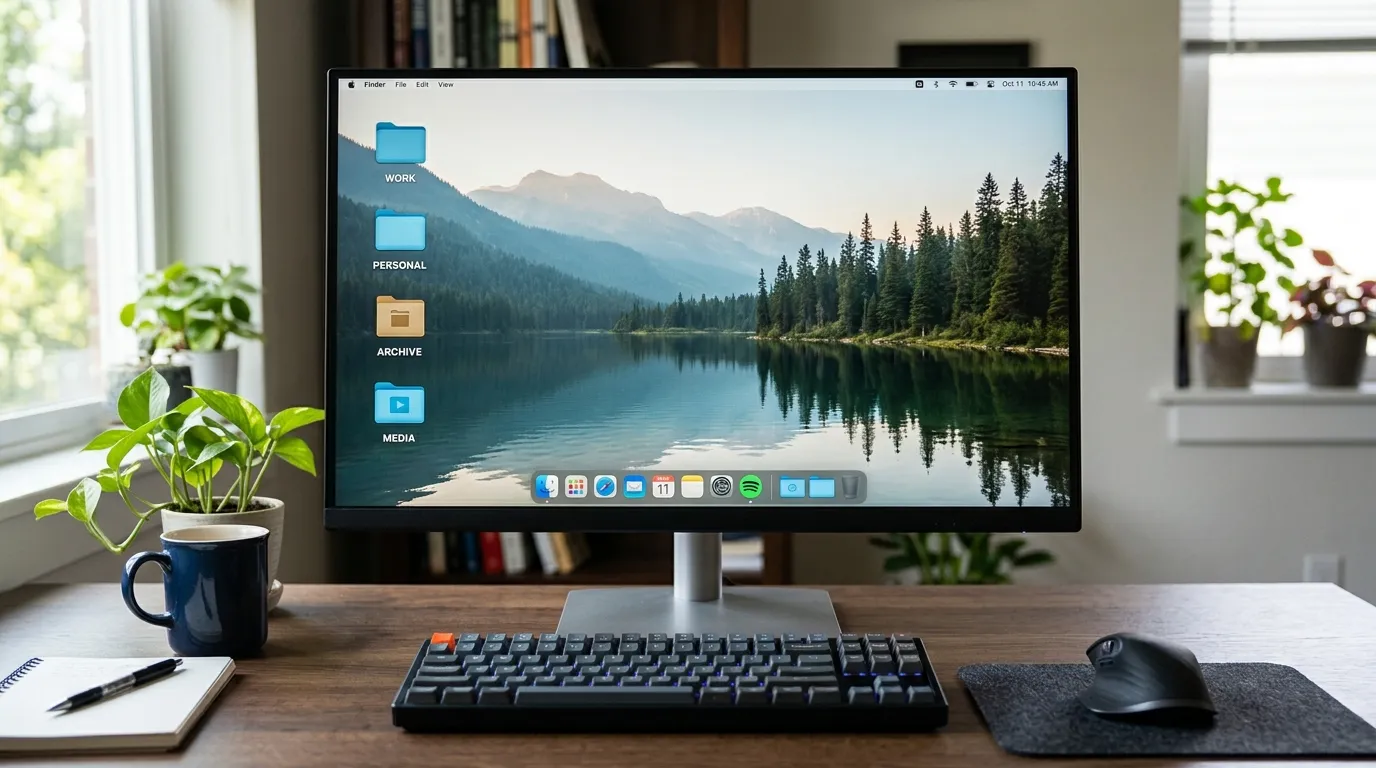
Good structure reduces that tax. When Work, Personal, Archive, and Media are obvious, filing becomes a two-second choice. When names include dates and plain words, future you can scan a folder without opening every file. When Downloads is emptied weekly, temporary space stays temporary. Organization is less about perfection and more about defaults that survive busy weeks.
1. Create a shallow tree you can remember under stress
Start at your user home or a single Documents root. Create a small set of top-level folders. A reliable starter set is Work, Personal, Archive, and Media. Some people add Admin for taxes, IDs, and warranties, or Creative for projects with lots of assets. Keep the top level under eight folders. If you need more, you are probably inventing categories you will not maintain.
Inside Work, use project folders or client folders, not endless status labels. Prefer ClientName-ProjectName over Active, Waiting, and Done at the top. Status changes; names should stay stable. Inside Personal, group by life areas such as Home, Health, Travel, and Finance if those areas produce many files. Media can hold Photos, Video, and Music if those libraries are not already managed by dedicated apps. Archive is for finished years and closed projects so active spaces stay small.
Avoid deep nesting. If you regularly click more than three levels to reach daily files, flatten. Deep trees feel orderly on day one and hostile on day thirty. Use search and clear names instead of labyrinths. On shared family computers, agree on the top-level names so nobody invents parallel universes called Stuff and Misc.
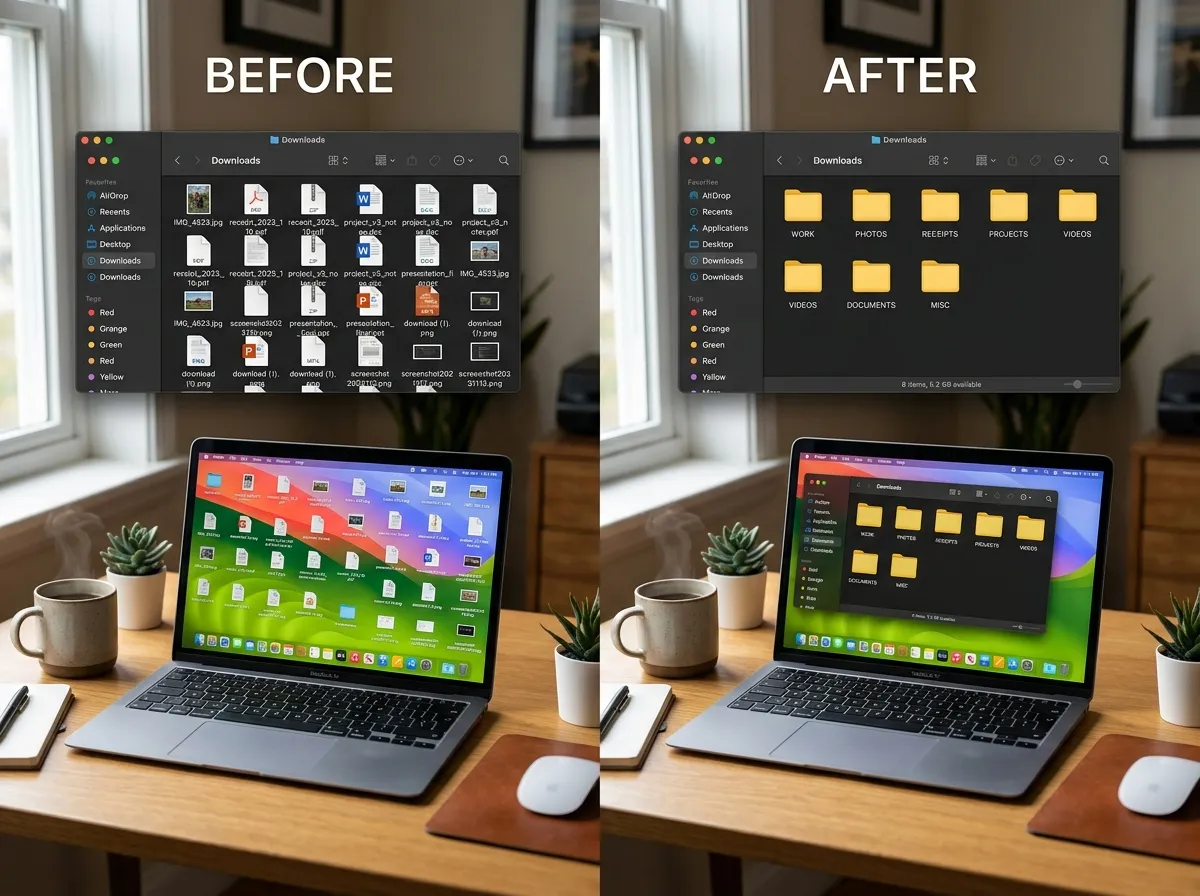
Desktop and Downloads are not categories. Treat Desktop as a temporary staging area with a hard limit, such as ten icons. Treat Downloads as an inbox. Anything that lives there more than a week is either filed or deleted. That single rule repairs more chaos than any fancy app.
2. Name files for search, not for decoration
File names should answer what, when, and sometimes who. A strong pattern is year-month-day plus plain words: 2026-08-tax-return.pdf, 2026-03-lease-renewal.pdf, 2026-07-q3-proposal-acme.docx. Leading with the date sorts chronologically in most file browsers. Using plain words helps search across tools. Avoid cute abbreviations only you understand this month.
Versioning belongs in the name when it matters: proposal-v2.docx or proposal-2026-07-12-final.docx. Do not rely on “final-final-really-final.” If you collaborate, include initials only when helpful, and prefer dates. Screenshots deserve renaming too. A screen full of IMG_4821-like captures is how travel receipts vanish. Rename the ones you keep as soon as you decide they matter.
Folders can use the same clarity. Prefer 2026-Taxes over Tax stuff. Prefer Travel-Japan-2026 over trip. Consistency beats cleverness. If your workplace imposes a naming scheme, follow it for work files and keep your personal scheme simple beside it. Fighting two systems in one head is how people give up.
Special characters and extremely long names can break sync tools and older software. Stick to letters, numbers, hyphens, and underscores when you can. Spaces are usually fine on modern systems, but be careful with names you will use in scripts or web uploads. When in doubt, shorter and clearer wins.
3. Empty Downloads weekly like you take out trash
Downloads is the most honest folder on your computer. It shows what you grabbed in a hurry. Make a weekly ritual, perhaps Friday afternoon or Sunday evening, and process everything. For each file, choose one action: file into the tree, delete, or park in a short-lived Holding folder that you also empty monthly. Do not create Holding as a permanent landfill. It is a pressure valve with an expiration date.
Installers and duplicate PDFs are frequent junk. If you already installed the app, delete the installer. If the same bank statement exists in email and Downloads, keep the filed copy and remove the duplicate download. Zip files can go after extraction if you do not need the archive. Large video downloads should move to Media or an external drive quickly so your system disk stays healthy.
Browser settings can help. Some browsers allow asking where to save each file. That slows you slightly and prevents silent pileups. Others can default to Downloads while you rely on the weekly sweep. Pick the behavior that matches your personality. The habit matters more than the setting.
Pair the Downloads ritual with a quick Desktop glance. If Desktop is a second Downloads, apply the same triage. A clean Desktop also makes screenshots and screen shares look calmer, which is a small professional gift to yourself.
4. Archive finished projects so active folders stay small
Active folders should feel like a workbench, not a warehouse. When a project ends, move it to Archive with a year or end date in the path, such as Archive/2026/Work/ClientName-Project. When a tax year closes, move the supporting documents into Archive/2025/Taxes after you no longer need them weekly. Archiving is psychological as much as technical. It tells your brain the pile is handled.
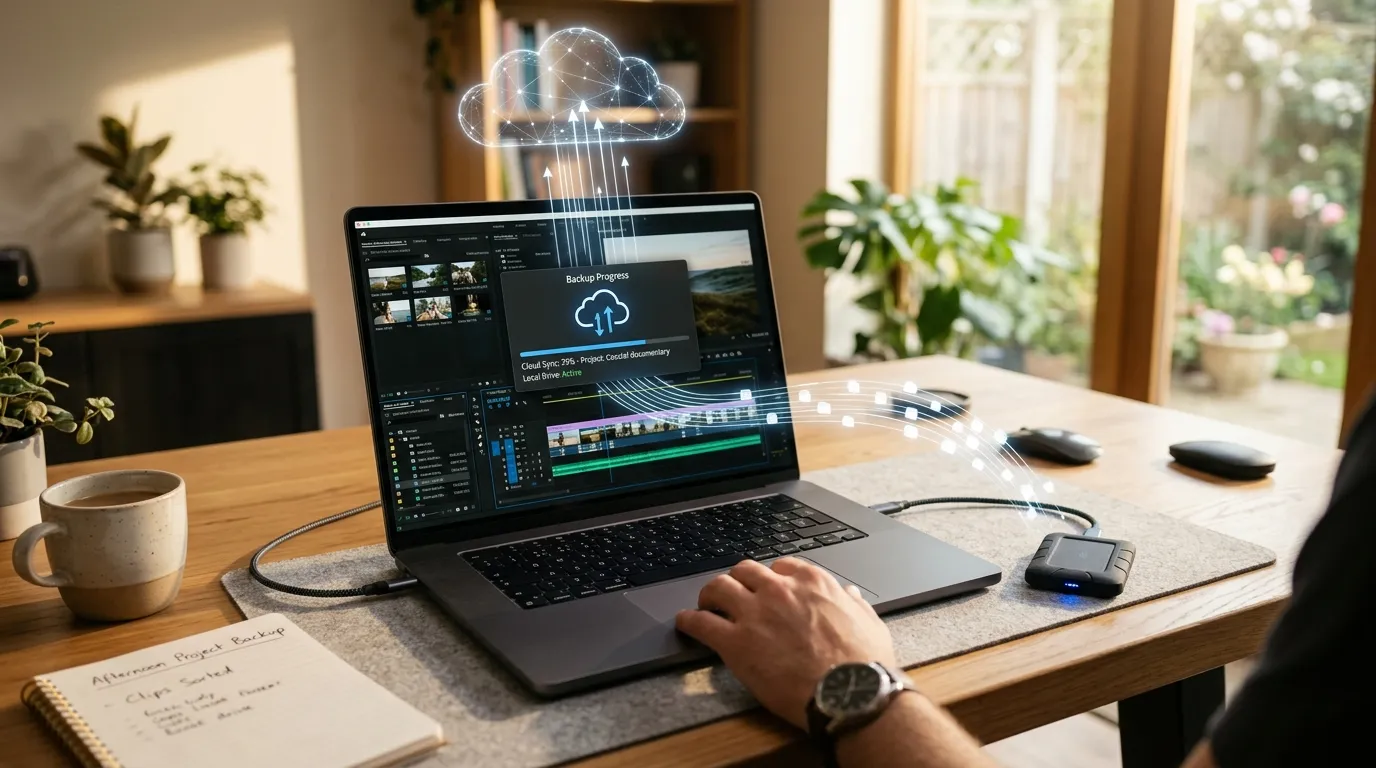
Do not archive things you still touch weekly. That creates hide-and-seek. Conversely, do not keep five years of finished clients in the same folder as this week’s drafts. The middle path is a yearly archive pass. Put it on the calendar near the new year or fiscal year boundary. Combine it with a backup check so archived work is copied off the machine. Our guide on how to back up your digital life explains how copies and archives work together.
External drives and cold storage are useful for bulky media and old projects, but label drives clearly and keep a simple inventory note. An unlabeled disk in a drawer is not an archive. It is a mystery. If you use cloud drive tiers, learn what is online-only versus available offline so travel days do not surprise you.
A practical starter structure you can copy
Here is a concrete layout many All U Want readers can adopt with light edits. Documents/Work for current jobs and clients. Documents/Personal for home life. Documents/Admin for identity scans, insurance, and warranties. Documents/Archive for closed years. Documents/Media only if photos and video are not already in dedicated libraries. Inside Work, one folder per project. Inside Personal/Finance, statements by year. Inside Admin, subfolders for IDs, Medical, Auto, and Home.
Templates help if you create similar projects often. A blank project folder might include Brief, Drafts, Final, and Assets. Copy the template when a project starts so you are not inventing structure under deadline. Keep templates few. Three good templates beat twelve abandoned ones.
If your work is research-heavy, you may want a reference library separate from active projects. That library can be organized by topic. Active project folders then hold only what the current deliverable needs, with shortcuts or copies as appropriate. This is where file organization meets knowledge practices. Capture ideas and durable notes in a second brain system, and keep the filesystem for files. For that companion habit, see second brain for beginners.
Search, tags, and when not to over-engineer
Modern search is powerful. Use it, but do not use it as an excuse for meaningless names. Search plus good names is excellent. Search plus chaos is gambling. Tags and favorites can mark hot folders, but tags collapse when you switch ecosystems or rebuild a machine. Folder location travels more reliably than a proprietary tag database. Use favorites for the five folders you open daily. Do not tag everything.
Cloud sync folders deserve special care. Put the cloud root in a known place and keep your main tree inside it if sync is part of your plan. Avoid duplicating the same project in a synced folder and a non-synced folder. Conflict copies with machine names in the title are a symptom of simultaneous edits or unclear homes. Pick one home per project.
Large media files can choke sync and backups. Keep current editing projects local if needed, then move finals to a media library or archive drive. Document that choice in a short README text file at the top of Media so future you remembers the rule.
Maintenance rhythms that prevent relapse
Daily: save new work into the right project folder the first time. Weekly: empty Downloads and skim Desktop. Monthly: glance at Work and Personal for folders that should be archived or renamed. Yearly: move closed work into Archive and verify backups. These rhythms are short on purpose. Organization systems die when they require heroic weekends.
When you inherit a messy machine, do not reorganize everything at once. Create the new shallow tree, then move files as you touch them, plus one thirty-minute rescue session a few times a week. Old leftovers can sit in a folder called Inbox-Legacy until processed. Set a deletion or archive deadline on that folder so it does not become permanent.
Families and roommates benefit from a shared Admin area for warranties and manuals, plus private personal folders. Agree that Downloads remains personal unless someone files a shared document into the shared tree. Clear social rules prevent quiet resentment about deleted files.
Signs your system is working
You can find a recent document in about thirty seconds. Downloads has fewer items than your patience can handle. Desktop is not a collage. Archive exists and is used. You rarely create folders named New folder. Naming feels automatic. When something cannot be found quickly, you rename it immediately instead of promising to fix it later. That feedback loop is the real product.
If the system stops working, simplify. Merge rarely used top-level folders. Shorten names. Reduce nesting. Organization should feel like putting dishes in a small set of cabinets, not cataloging a library of congress.
Quick tip
If you cannot find a file in thirty seconds, rename it now and put it in the shallow tree. Future search depends on today’s honesty.
FAQ
How long does this take? Building the starter tree and naming rules can take under an hour. Cleaning years of backlog can take a week of short sessions. Start with structure and new habits; migrate old files gradually.
Do I need special tools? No. Your operating system’s file manager is enough. Simple defaults beat complicated setups you abandon. Optional search utilities help only after names and folders are sensible.
Should everything live in the cloud? Cloud sync is excellent for current documents if you also understand offline availability and backup. Large archives may belong on local or external storage with a clear inventory.
What about photos? Prefer a dedicated photos app or library for camera shots, and use Media folders for exports and project assets. Mixing every image into Documents without structure recreates chaos.
How do I handle duplicates? Keep the clearest named copy in the correct folder, then delete or archive extras after you confirm they are identical. Do not start with aggressive duplicate tools on important archives without a backup.
Is the desktop ever okay? Yes, as a temporary bench. If an icon is still there after a week, file it. A permanently busy desktop is a symptom, not a workflow.
How does this relate to notes and tasks? Files hold artifacts. Notes hold thinking. Tasks hold next actions. Keep those layers distinct so folders do not become a graveyard of half-written ideas.
Related: Second Brain for Beginners · How to Back Up Your Digital Life