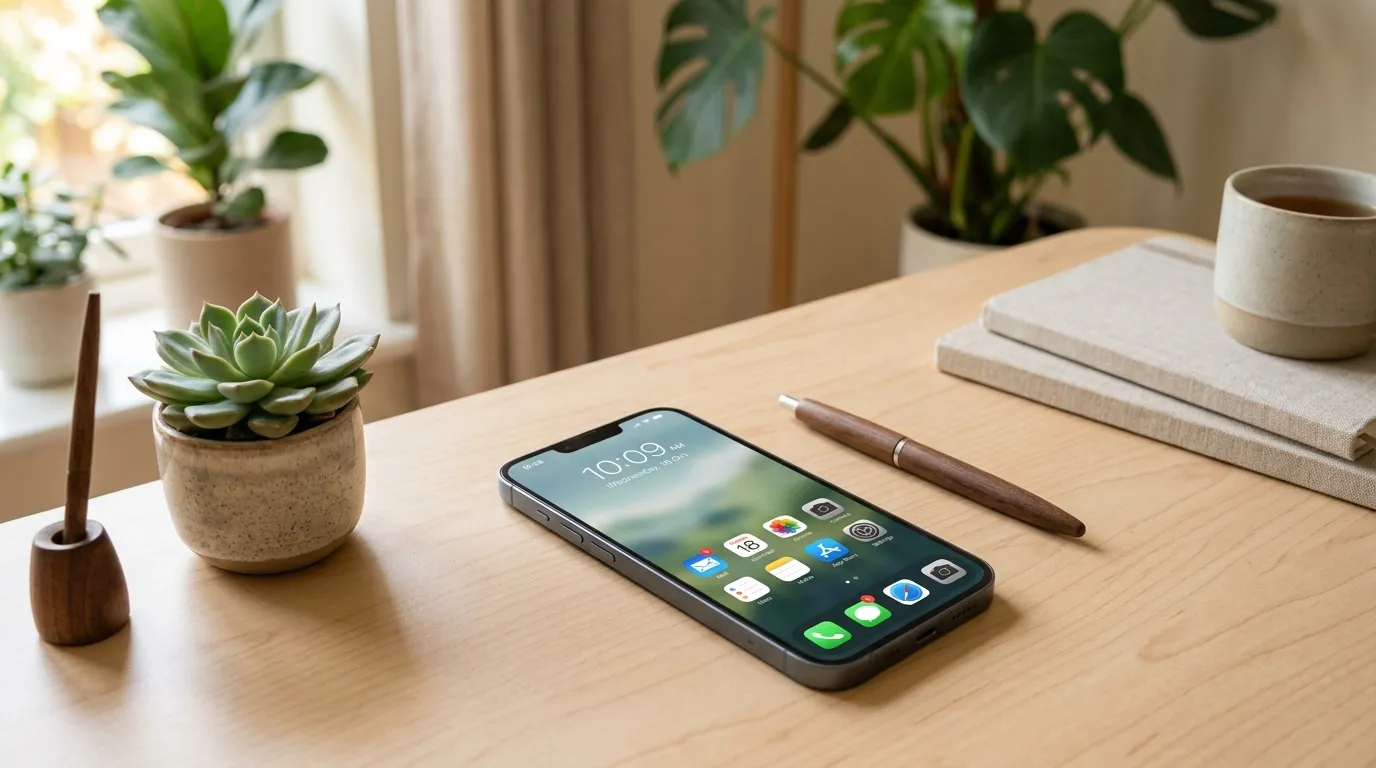
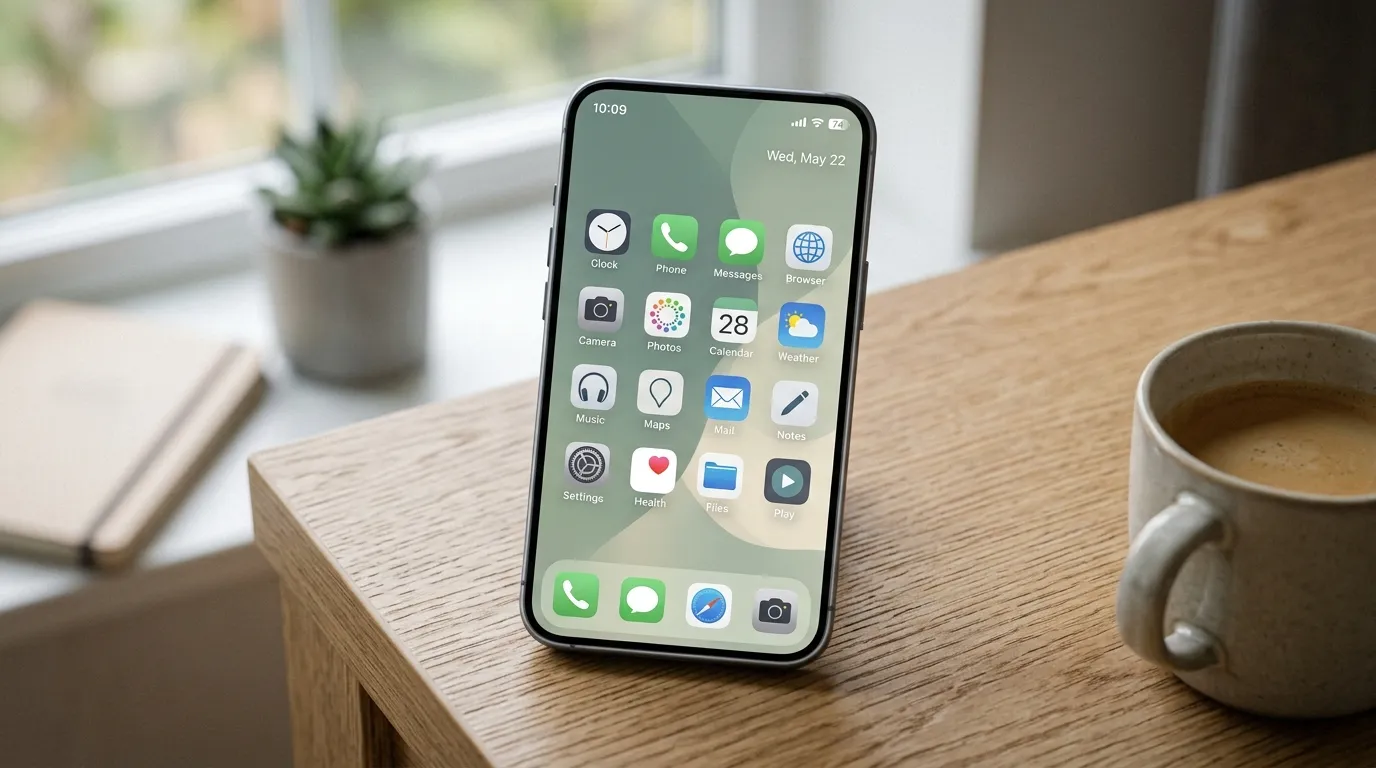
Your phone home screen is not decoration. It is a control panel that either invites focus or invites accidents. When every icon shouts for a tap, you open apps you never intended to open. When badges paint the screen red, your nervous system treats unfinished loops as emergencies. Cleaning the home screen is one of the fastest ways to feel less stressed without quitting your phone.
This guide is for people who want a calmer first screen, not a sterile museum. You will keep the tools you use daily, hide the rest behind search and folders, and reduce the visual noise that trains anxiety. Pair the layout work with fewer interruptions from a notification diet, and the calm lasts longer than a weekend reset.
Why a crowded home screen raises stress
Humans scan for color, motion, and unfinished cues. App icons are colorful. Badges are unfinished cues. Widgets can become tiny dashboards of everything you are behind on. Put them all on page one and you create a slot machine you carry in your pocket.
Common stress patterns:
- Opening social apps because they sit next to Maps
- Checking email because a badge looks urgent
- Scrolling pages of icons instead of searching
- Feeling behind every time you unlock the phone
- Reinstalling the same chaotic layout after each update
A clean home screen does not make you more disciplined by magic. It changes the default path. Defaults beat motivation.
Principles before you rearrange icons
- Page one is for daily tools only. If you use it less than most days, it does not belong on the first screen.
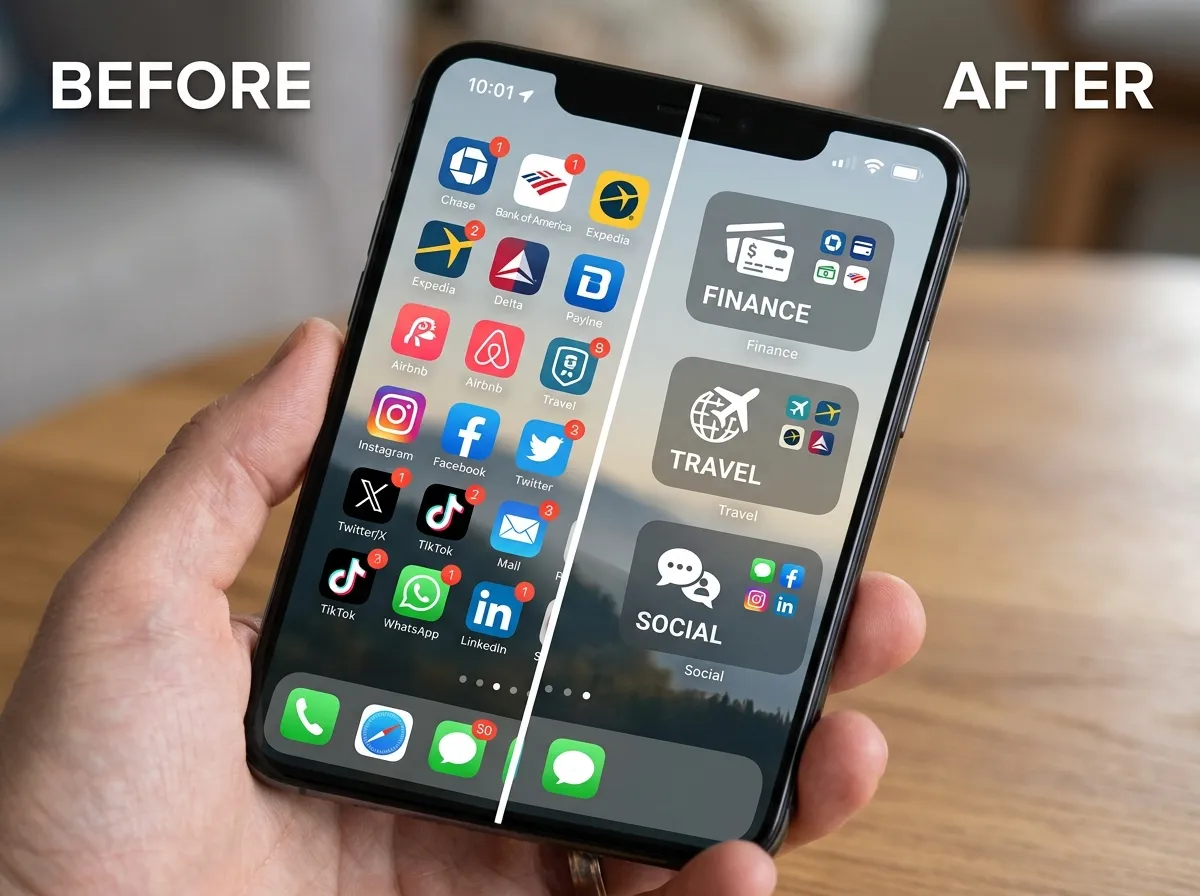
- Folders are jobs, not brands. Finance, Travel, Media, Social, Utilities beat folders named Misc.
- Search is a feature, not a failure. Hunting icons is slower than typing three letters.
- Badges are optional. Red dots are not moral obligations.
- One aesthetic decision is enough. Pick a simple wallpaper and stop tweaking themes for hours.
If your whole phone is full of unused apps, delete first. Layout cannot fix a library of dead software. Use the broader digital declutter checklist when app count is the real problem.
Step 1: Audit what you actually open
Before moving icons, gather evidence. Check screen time or app usage for the last week. Write a short list of apps you opened on most days. Those are home screen candidates. Everything else is a folder or library candidate.
Typical daily keepers:
- Phone, Messages, Camera
- Calendar and Clock
- Maps and one rideshare or transit app if you commute
- Banking or payment app you use weekly
- Notes or reminders
- One music or podcast app
- Work chat only if your job requires it on the phone
Typical folder material: shopping, games, airlines, hotel apps, specialty utilities, duplicate cloud apps, social networks you open by habit rather than need.
Step 2: Build one essential first screen
Clear page one completely, then place only daily keepers. Aim for a sparse grid with empty cells. Empty space is not wasted space. It is a buffer that slows impulsive tapping.
Suggested layout pattern:
- Bottom dock: Phone, Messages, Camera, and one flexible slot (Maps or Browser)
- Upper grid: Calendar, Notes, Banking, Music, Work tools if required
- One folder maximum on page one for overflow dailies
- No social icons on page one if those apps steal evenings
If your job requires Slack or email on the phone, place them deliberately, not next to entertainment. Proximity creates mix-ups. Put work tools in a Work folder on page one if you need them, and keep social on page two or in a Social folder off the first screen.
Step 3: Folder by job, not by vibes
Folders fail when they become junk drawers. Name folders by the job they do:
- Finance: bank, budget, investing, tax
- Travel: airlines, lodging, maps extras, packing lists
- Social: networks and community apps
- Media: streaming, podcasts, photo editors
- Utilities: QR scanners, PDF tools, scanner apps
- Seasonal: sports tickets, holiday shopping, tax season tools
Keep folder pages short. If a folder has three screens of icons, you did not declutter. You hid clutter. Delete duplicates and rarely used tools until each folder fits on one or two pages.
On many phones you can leave apps in the app library without placing them on any home screen. Use that. Home screens are for launch speed, not inventory.
Step 4: Remove badges and interruptive widgets
Badge counts train urgency. Turn off badges for mail, shopping, news, and social wherever your phone allows. Keep badges only for true human messages if you must. Better yet, reduce the notifications that create badges through a notification diet so the dots stop regenerating.
Widgets deserve skepticism. A calendar widget can help. A news widget can hijack mornings. A fitness ring can motivate or shame depending on your season of life. Keep at most one or two widgets that answer a real daily question. Remove ambient dashboards that show streak guilt and unread piles.
Step 5: Choose a calm visual field
Wallpaper matters more than people admit. Busy photos make icons hard to find and add visual noise. Prefer a soft, low-contrast image or a simple gradient with enough darkness or lightness for icon labels to stay readable. Avoid animated wallpapers if motion pulls your eye.
Icon packs and elaborate themes can become another procrastination project. If customization helps you enjoy the device, keep it simple. If you have spent two hours picking icon styles while your Downloads folder is chaos, stop and finish the layout with default icons.
Step 6: Optional grayscale and evening modes
Some people reduce late-night scrolling by switching the phone to grayscale in the evening. Color is part of the slot-machine pull. Grayscale makes feeds less sticky. You do not have to live in grayscale forever. Try it for one week after 8 p.m. and notice whether bedtime gets easier.
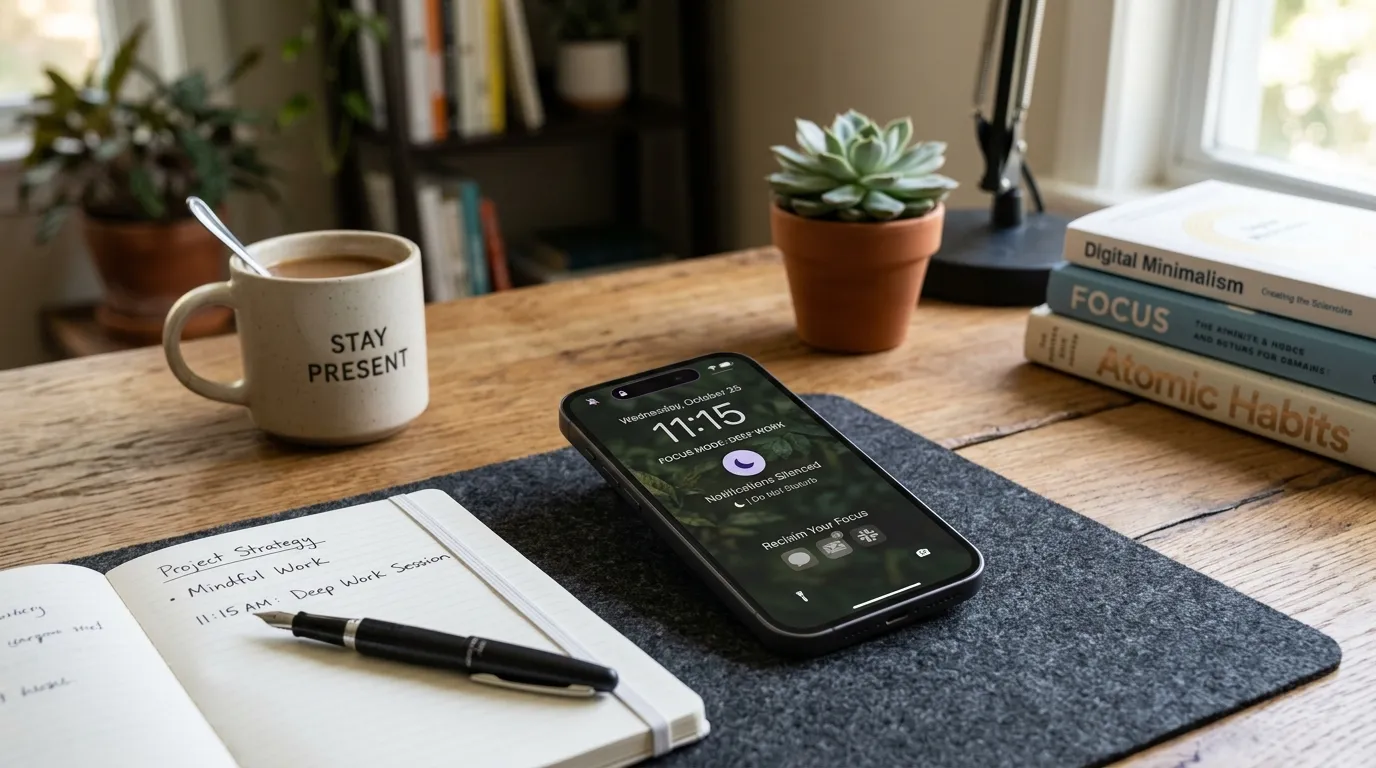
Combine grayscale with Focus or Do Not Disturb schedules. A clean home screen plus quiet evenings beats either tactic alone. The home screen reduces accidental opens. Focus modes reduce interruptions when you did mean to open something else.
A practical setup session (45 minutes)
- Minutes 0–10: Delete unused apps. Do not rearrange yet.
- Minutes 10–20: Note your daily apps from usage stats.
- Minutes 20–30: Rebuild page one with dailies only. Clear other pages temporarily.
- Minutes 30–40: Create job folders and park non-dailies.
- Minutes 40–45: Disable badges on noisy apps. Remove extra widgets. Set a simple wallpaper.
Live with the layout for three days before tweaking. Early tweaking recreates clutter through indecision.
Home screen rules for the next month
- No new app lands on page one on install day. Park it in a folder for a week.
- If you open an app daily for seven days, then consider page one.
- If an app sits unused for 30 days, delete or bury it.
- When you feel the urge to “organize,” do a five-minute badge and widget check instead of a full redesign.
- After OS updates, verify that badges and focus settings did not reset.
These rules prevent the familiar cycle: clean on Sunday, chaotic by Thursday, guilty by next Sunday.
Special cases: shared phones, work phones, family setups
If the phone is for work only, page one can be denser with work tools, but still use folders for vendors, expenses, and rarely used portals. If the phone is shared with family, keep adult-only apps behind Face ID or App Lock and leave the first screen kid-safe if children unlock it.
Two-phone users often fail by mirroring chaos on both devices. Give each phone a role. Personal phone: calm page one, social in folders. Work phone: work tools only, no games. Role clarity reduces the urge to recreate one messy layout everywhere.
Common mistakes
- Keeping social apps in the dock. The dock is prime real estate. Put high-temptation apps farther away.
- Folders named Misc. Misc is where intentions go to die.
- Widget walls. More information on unlock does not mean more control.
- Perfectionist icon alignment. Spend the time deleting apps instead.
- Cleaning layout while leaving notifications loud. Badges will return and undo the calm. Pair with a notification diet.
- Never using search. Search is the advanced mode hiding in plain sight.
How a clean home screen fits a wider digital life
The home screen is one surface. It works best when the rest of your digital environment is not exploding. After you clean page one:
- Mute nonessential alerts so badges stop breeding
- Declutter unused apps and files so the library stays light
- Keep email and shopping off the first screen if they trigger stress loops
- Review the layout monthly during a short digital reset
Think of the home screen as the front door. Decluttering the whole house still matters, but a calm door changes how every entry feels.
Seven-day experiment
- Day 1: Rebuild page one. Social off the first screen.
- Day 2: Turn off badges for mail, shopping, and news.
- Day 3: Create job folders and empty junk pages.
- Day 4: Remove all but one useful widget.
- Day 5: Set Focus hours for evenings.
- Day 6: Try grayscale after dinner.
- Day 7: Review what you still open by habit. Adjust one thing only.
Write one sentence at the end of the week: what felt easier? Keep the changes that reduced stress. Drop the ones that felt like punishment.
Templates for different lifestyles
Not every calm home screen looks the same. Borrow a template and adapt it.
Student template
Page one: Calendar, Notes, Campus portal, Maps, Messages, one focus timer. Folders: Classes, Social, Money, Media. Keep shopping and games off page one during exam weeks. Put the library or learning app where your thumb lands first in the morning so the default open is study-related rather than social.
Parent template
Page one: Phone, Messages, Calendar, Camera, Maps, school or childcare app. Folders: Kids, Health, Finance, Social. A widget for today’s calendar can reduce frantic checking. Hide adult-only apps behind authentication if children borrow the phone. Keep group chat apps visible if that is how your family coordinates, but silence nonessential badges.
Creator or freelancer template
Page one: Calendar, Notes, Camera, Banking, Work chat, one capture app for ideas. Folders: Clients, Social Publishing, Utilities, Media Editing. Social belongs in a publishing folder if posting is work, and in a separate Personal Social folder if leisure scrolling is the risk. Separating those two reduces “I opened to post and stayed for an hour.”
Recovery-from-chaos template
If your phone currently has six home screens, do not redesign all of them tonight. Move every icon into a single Temporary folder, rebuild page one with ten daily apps, then spend the next three evenings sorting Temporary into job folders. A staged rebuild prevents the overwhelm that makes people quit and restore the old mess from a backup.
What to do when the clean screen feels “too empty”
Some people feel uneasy when page one looks sparse. That feeling often fades in a few days as your thumbs learn search and folders. If emptiness truly bothers you, add one meaningful widget or a photo wallpaper that feels personal without adding badges. Do not refill the grid with optional apps just to make it look busy. Busy is what you left.
Another option is a second screen with seasonal tools only, reviewed monthly. The rule remains: page one stays sacred for daily launches. Extra screens are storage, not a second slot machine.
Measuring stress reduction without obsessing
You do not need a spreadsheet. After two weeks, notice:
- How often you unlock and immediately feel behind
- How often you open a social app by accident
- Whether bedtime scrolling starts from a home screen tap or a deliberate choice
- Whether you can find Maps, banking, and notes without hunting
If accidental opens dropped and unlock anxiety dropped, the layout is doing its job. Keep it. Tweak only one variable at a time when something still nags you.
Teaching your thumbs a new default
A clean layout fails if muscle memory still taps the old corner where Instagram lived. For three days, narrate the first unlock out loud: “Search for Maps,” or “Open Work folder.” Speaking slows the hand enough to break the autopilot path. After a few days the new grid becomes the autopilot.
If a temptation app keeps migrating back to page one because you moved it during a bored minute, put a paper sticky on your desk for a week: “Page one is tools, not treats.” Physical cues sound silly. They work when digital cues are exactly what you are retraining.
Revisit the dock monthly. The dock is prime real estate. If a dock icon has become a boredom door, demote it even if you use it daily. Daily use through search or a folder still counts as access. The dock should favor apps you open with a job already in mind: messages to a person, maps to a place, camera to a moment, notes to a capture.
FAQ
How long does cleaning a home screen take? A solid first rebuild takes 30 to 60 minutes. Refinements over a week make it stick. You do not need a full day.
Do I need a launcher or special app? No. Default iOS and Android tools are enough for folders, dock layout, badges, and focus modes. Launchers are optional and can become another rabbit hole.
Is it okay to keep games on my phone? Yes, if they are intentional. Keep them in a Games folder off page one so boredom does not auto-launch them every unlock.
What if my job requires many apps? Use a Work folder on page one and keep personal temptations elsewhere. Density for work tools is fine; mixing work and entertainment on the same grid is what creates stress taps.
Should I hide apps completely? Hiding can help for high-temptation apps if your phone supports it. Search still finds them when you truly need them. Use hiding as a friction tool, not as shame.
How do I keep the clean layout after updates? After major OS updates, spend ten minutes checking badges, focus modes, and whether new default apps appeared on page one. Put a calendar reminder on update days.
Related: Notification Diet · Digital Declutter Checklist